How to Connect Your Digital Business Card to HubSpot and Your CRM
Yes, a digital business card can feed a CRM. In Piktechs, an owner or admin connects HubSpot or Odoo in the team's Integrations tab, and each new lead is then sent automatically. Zapier and Make cover other tools such as Salesforce or Pipedrive, and a CSV export always works.
This article is the setup walkthrough. For the wider picture of field capture and qualification, read the mobile CRM guide.
Can a digital business card integrate with a CRM?
A digital card on its own is a page with your details. It becomes useful to a sales team when each person who answers its form lands in the CRM without anyone retyping them.
Piktechs does this in three ways:
- Native connectors: HubSpot and Odoo, connected in Team, Integrations.
- Webhook: Zapier and Make receive each lead, and pass it to the tool of your choice.
- CSV export: the contact list downloads as a file, whatever CRM you use.
Your CRM stays the system of record. Piktechs feeds it. It is not a CRM of its own: it covers the field, which means capture, qualification, notes and follow-up reminders. Without a CRM, you can work from Contacts and export a CSV.
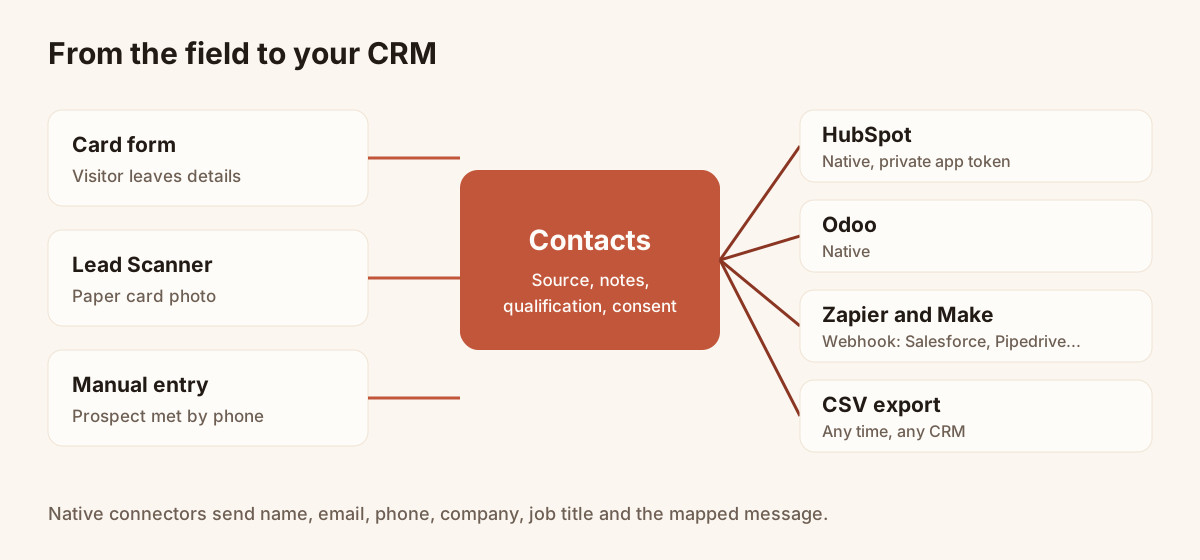
From the field to the CRM: the three native paths.
Why sync automatically instead of exporting
Many teams start with a spreadsheet. A rep exports the contacts after the show, someone cleans the file, and the import happens a week later. By then the visitor has heard from other stands.
Automatic sending removes the waiting. The lead reaches the CRM when it is captured, with its source attached, so the person who owns the follow-up sees it the same day. The CSV export stays available for the cases where a file is the right tool, such as a one-off list for a partner.
Three things change for the team:
- The rep does not retype. One capture, one record.
- The owner of the CRM sees every lead. Nothing depends on a rep remembering to export.
- The follow-up starts sooner. A lead tagged with the show and a priority is ready to sort.
How to connect a digital business card to HubSpot
The connection is made by the owner or an admin of the team workspace. It takes a few minutes and needs no developer.
- In HubSpot, create a private app with the contacts scope. The menu is Settings, Integrations, Private Apps.
- Copy the access token that HubSpot gives you.
- In Piktechs, open Team, then Integrations.
- Paste the token in the HubSpot block and save.
From then on, each new lead is sent automatically. Contacts that already exist in Piktechs can be sent with the manual synchronise button, which is useful the first time you connect.
Keep the token private. It gives access to the contacts of your HubSpot account, as the scope you picked allows. If someone leaves the company, create a new private app and replace the token.
Connecting Odoo
Odoo follows the same logic: an owner or admin connects it in the same Integrations tab, and contacts then reach Odoo as they do in HubSpot. Ask whoever administers Odoo for the access details before you start.
What data should a lead carry into the CRM?
A name and an email address are the minimum. A sales rep also needs to know where the lead comes from, the conversation, and whether the person agreed to be contacted.
| Destination | Fields received |
|---|---|
| HubSpot | Name, email, phone, company, job title, and the message if mapped |
| Odoo | Name, email, phone, company, job title, and the message if mapped |
| Zapier and Make | The full lead: source, tags, notes and form answers |
For HubSpot and Odoo, the list above is the default mapping today. If your form asks for a message, map it in the field mapping to see it in the CRM. Answers to your other form questions, tags and notes stay in Piktechs for these two connectors. To carry them into the CRM, use Zapier or Make, which receive the full lead.
Two good habits keep the data useful:
- Fill the job title and company. They are the fields that let a rep sort leads by account.
- Use the message field for the need. A short answer such as the project or the timeline gives the rep a reason to call.
Using the field mapping
The field mapping tells Piktechs which of your form fields goes into which contact field in the CRM. A form field that asks for the email goes to the email. A free-text question can go to the message.
To set it up, open the integration in Team, Integrations, then the field mapping. Check each line against a test lead before you rely on it. If a field is not mapped, it is not sent to HubSpot or Odoo.
Testing the connection with one lead
Run this test before the team starts, and again after any change to a form or a mapping. It takes five minutes.
- Open your own card on a phone and fill in the form with a real email address, a phone number, a company and a short message.
- Open the lead in Contacts. Check that the name, email, phone and company are there.
- Open the CRM and search for the email address. The contact should appear with the same details.
- Look at the message. If it is missing, open the field mapping and map the question to the message field.
- Capture the same person a second time and check that the CRM does not show two contacts.
If something is missing, the sync history is the first place to look. Then check the mapping, then the token.
How to send business card leads to Salesforce or Pipedrive
Piktechs has no native Salesforce connector. Pipedrive is not a native connector either. For these tools, and for any other CRM, use Zapier or Make.
The principle:
- In Zapier or Make, create a scenario that starts with a webhook.
- In Piktechs, open Team, Integrations and give the webhook address to Zapier or Make.
- Capture a test lead. The scenario receives the full lead.
- Add the step that creates or updates the contact in your CRM, and map the fields.
- Turn the scenario on.
The advantage is that the whole lead arrives: source, tags, notes and form answers. The cost is that you manage the scenario, and your Zapier or Make plan applies. Test it with a lead of your own before the team uses it.
To choose between the paths, start from your CRM. HubSpot or Odoo: use the native connector. Any other CRM: use Zapier or Make. No CRM yet: work from Contacts and export a CSV when you are ready.
How to avoid duplicate contacts in your CRM
Duplicates come from three causes: the same person captured twice, a contact typed by hand in the CRM, and an import done on top of the automatic sync. A few rules reduce them.
- Capture the email address every time. It is the field most CRMs use to recognise a contact. Ask for it in every form.
- Connect once. Do not run the native connector and a Zapier scenario for the same CRM. Each lead would be sent twice.
- Use the manual sync once. Send existing contacts when you connect, then let the automatic sync take over.
- Search the CRM before you import a CSV. A file import follows the rules of your CRM, not those of Piktechs.
- Check the sync history. It shows which leads were sent, and when, before you look for a missing contact.
Piktechs creates or updates a contact in HubSpot. Test the case that matters to you: capture the same person twice with the same email and look at the result in the CRM.
The sync history and the manual synchronise button
Automatic sending covers new leads. Two tools cover the rest:
- Manual synchronise: sends the contacts that already exist in Piktechs to HubSpot or Odoo. Use it after the first connection, or after fixing a mapping.
- Sync history: lists the leads that were sent. Open it when a rep says a lead is missing from the CRM.
Leads captured without signal are kept on the device and sent when it is back online, so a lead from a basement trade show hall still arrives.
Limits of the connection today
Be precise with your team about the scope of the connection today:
- New leads are sent automatically, one by one. There is no scheduled sync.
- HubSpot and Odoo receive name, email, phone, company, job title and the mapped message. Address and website are not synced.
- You connect with a private app token, not with a one-click "connect my account" button.
- There is no native Salesforce connector.
Anything else goes through Zapier, Make or the CSV export. The CSV export of the contact list has no phone, priority, tags or notes column, so prefer a webhook when you need those in the CRM.
Checklist before the first trade show
- Create the HubSpot private app and connect it in Team, Integrations.
- Capture a test lead with a real email address and a message.
- Check the lead in the CRM: name, email, phone, company, job title, message.
- Press the manual synchronise button for existing contacts.
- Look at the sync history.
- Check that every form asks for the email address.
- Tell the team where leads go and who owns them in the CRM.
For a show, add the event's name as a tag when you qualify the lead, as in the trade show lead capture article. To bring paper cards into the same list, read how to scan business cards. For leads gathered through a poster, see collecting contact information with a QR code.
The CRM connection is part of the mobile CRM companion and of the Pro and Team plans, with a 14-day trial.
Frequently asked questions
Does Piktechs work with Salesforce?
There is no native Salesforce connector. Use Zapier or Make: a webhook sends each lead, and a scenario creates the contact in Salesforce.
Who can connect HubSpot or Odoo?
The owner or an admin of the team workspace, in Team, Integrations. Other members capture leads, and the leads follow the connection.
Are my existing contacts sent when I connect?
New leads are sent automatically after the connection. Existing contacts are sent when you use the manual synchronise button.
Do I need a CRM to use Piktechs?
No. You can work from Contacts and export a CSV. The CSV has no phone, priority, tags or notes column, so a CRM or a webhook gives a fuller record.
Is the lead's consent sent to the CRM?
Consent is recorded with each lead in Piktechs. Whether it appears in a CRM field depends on the mapping and the connector, so check it on a test lead.
Read next
 Guide
CRM mobile app: features, offline use and integrations
Definition of a mobile CRM app, features to expect, offline use, integrations and team rollout, with the place of Piktechs next to your CRM.
 Article
How to Track Who Viewed Your Digital Business Card
See how many people viewed and saved your digital business card, how many became leads, and why a view does not name the visitor.
Scan your first card today
Pro includes Lead Scanner, forms and Contacts. 14-day trial.