How to Scan Business Cards Into Your Phone and CRM
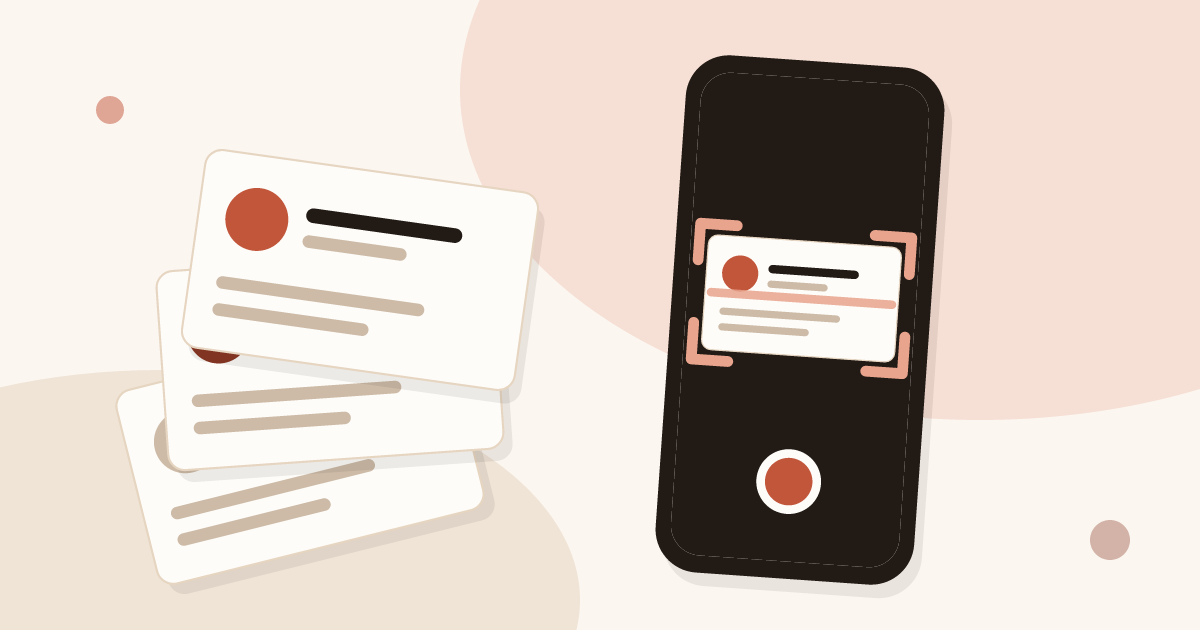
To scan business cards, photograph each card with a tool that reads the printed text, check the fields it proposes, then send the record to the place where you work. A plain photo is not enough: without reading or sending, you retype everything. This guide compares the methods and details the full path.
Why scan business cards
A paper card fits in a pocket, but it cannot be searched. A few weeks later, nobody can find the card of the purchasing manager met in March. It sits in a drawer, in a wallet, or in the jacket worn at the trade show.
Scanning a business card solves three problems at once.
- Finding. A record can be searched by name, company or tag. A paper card is searched by hand.
- Sharing. A colleague can see a record. A paper card stays with the person who received it.
- Following up. A record carries a note and a reminder date. A paper card has no memory.
Paper cards are not going away. People keep handing them out, and you can keep handing out yours. This guide is about the card you receive: how to turn it into a usable contact without retyping it. If you also want a card of your own to hand out, the article on how to create a digital business card shows the steps.
For a sales team, more than convenience is at stake. A rep back from a show with a stack of cards needs to process them before the contacts go cold. The guide on trade show lead generation shows how scanning fits into the preparation and follow-up of an event.
Methods to scan business cards
There are three families of methods. They start with the same gesture, framing the card with the phone, and part ways after that.
- The phone camera. The image stays in the gallery. Nothing is read. To call or write, you copy the name, email address and number by hand.
- A business card scanning app. The app reads the text and fills in a contact record. You check it, then the record stays inside the app. Getting it out usually means an export.
- An app linked to your CRM. The reading is the same, but the record goes to the tool your team already uses, with a priority, tags and a note.
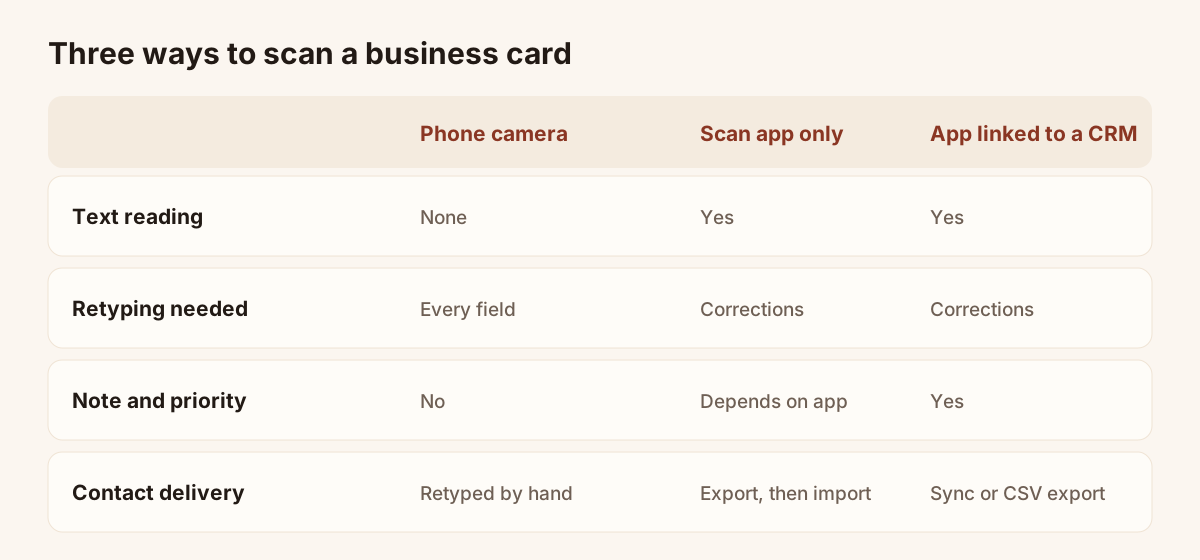
The three scanning methods, compared in qualitative terms.
Choosing a method
| Criterion | Phone camera | Scan app only | App linked to a CRM |
|---|---|---|---|
| Reads the card text | No | Yes | Yes |
| Retyping needed | Every field | Corrections only | Corrections only |
| Note and priority at scan time | No | Depends on the app | Yes |
| Record shareable with the team | No | Rarely | Yes |
| Arrival in the CRM | Manual entry | Export, then import | Sync or export |
| Suits | One card now and then | A personal list | A team receiving cards every week |
The table holds no accuracy rate, because no serious figure applies to every card. Reading quality depends on the card, the light and the tool.
Which method for your situation
- One card now and then, for you alone: a photo is enough, as long as you accept retyping.
- A tidy list with no tool to connect: a scan app fits. Plan on an export to get the records out.
- A team, or a CRM already in place: an app linked to the CRM stops each rep from keeping contacts in a private corner.
The article on how to scan a business card with your phone covers these three methods from the phone side, with the steps for each.
What is the best way to digitize business cards?
The best way to digitize business cards is a tool that reads the card, lets you correct the fields, and sends the record to the place where you follow up. Each part matters, and a method that lacks one leaves work to do by hand.
- Reading. Without it, you retype every field. A plain photo only stores an image.
- Checking. Any reading can fail on a decorative card, so you confirm the email and the name before saving.
- Context. A priority, a tag, a note and a reminder tell you later why you kept the card.
- Destination. The record must reach your CRM, or at least a CSV export you can open. A record locked inside an app helps nobody.
For one person with a few cards, a scan app and a spreadsheet can be enough. For a team that receives cards every week, an app linked to the CRM avoids private lists. The Lead Scanner follows this path: photo, check, qualify, then Contacts, and from there HubSpot, Odoo, Zapier, Make or CSV. The comparison table above gives the criteria one by one. Whatever the tool, digitize the cards soon after the meeting, while the conversation is still clear, and keep paper cards if you like them: scanning does not replace them.
OCR reading: how it works and where it fails
OCR stands for optical character recognition. It turns the letters of an image into text. For a business card, the tool then tries to sort that text into fields: name, job title, company, email, phone, website.
Two operations follow each other. The first is reading: finding the characters in the image. The second is sorting: deciding that “Purchasing manager” is a job title and that “nordik.fr” is a website. The second operation is the more fragile one, because a card has no fixed layout.
Cards that make reading harder
A business card is designed to look good, not to be read by a machine. Several layout choices slow reading down.
- Thin or decorative fonts. Very light or stylised characters are confused more easily.
- Dark cards. Light text on a dark background, or a textured background, lowers contrast.
- Varnish and glare. A spot varnish shines under a stand lamp and hides letters.
- Vertical or slanted text. A name running along the height of the card is sorted less reliably.
- Several languages. A bilingual card can produce mixed fields.
- Many details. Several numbers, addresses or job titles force a choice.
No tool guarantees a perfect reading of these cards. That is why the checking step below exists: the tool proposes, you confirm.
Two-sided and bilingual cards
Many cards carry one language on the front and another on the back, or different details on each side. The Piktechs help centre describes photographing a card and importing an image, without detailing how the back is handled. For a two-sided card, photograph the side with the most contact information, then add the missing detail in the note or correct the field by hand.
Taking a photo that reads well
The gesture matters as much as the tool. The Piktechs help centre advice comes down to four points.
- Lay the card flat on a plain surface.
- Light it evenly, with no shadow from your hand.
- Fill the frame with the card, with no extra margin.
- Avoid glare, especially on varnished cards.
One more practical point: images in HEIC format, which some phones produce by default, are not supported by the Lead Scanner. Use JPEG, either by changing the camera setting or by exporting the image in that format before importing it.
Scan a business card step by step with the Lead Scanner
The Lead Scanner is the Piktechs tool for paper cards you receive. It reads the card, fills in a record and sends it to the Contacts list. It is included in the Pro and Team plans, with a 14-day trial. Details are on the business card scanner page.
The four steps of a scan
- Open the Lead Scanner. On a phone, it is the round button in the bottom bar.
- Take a photo of the card, or import an image. The frame helps you place the card.
- Check the fields that were read. Add a note or a priority if you wish.
- Save. The lead is added to Contacts.
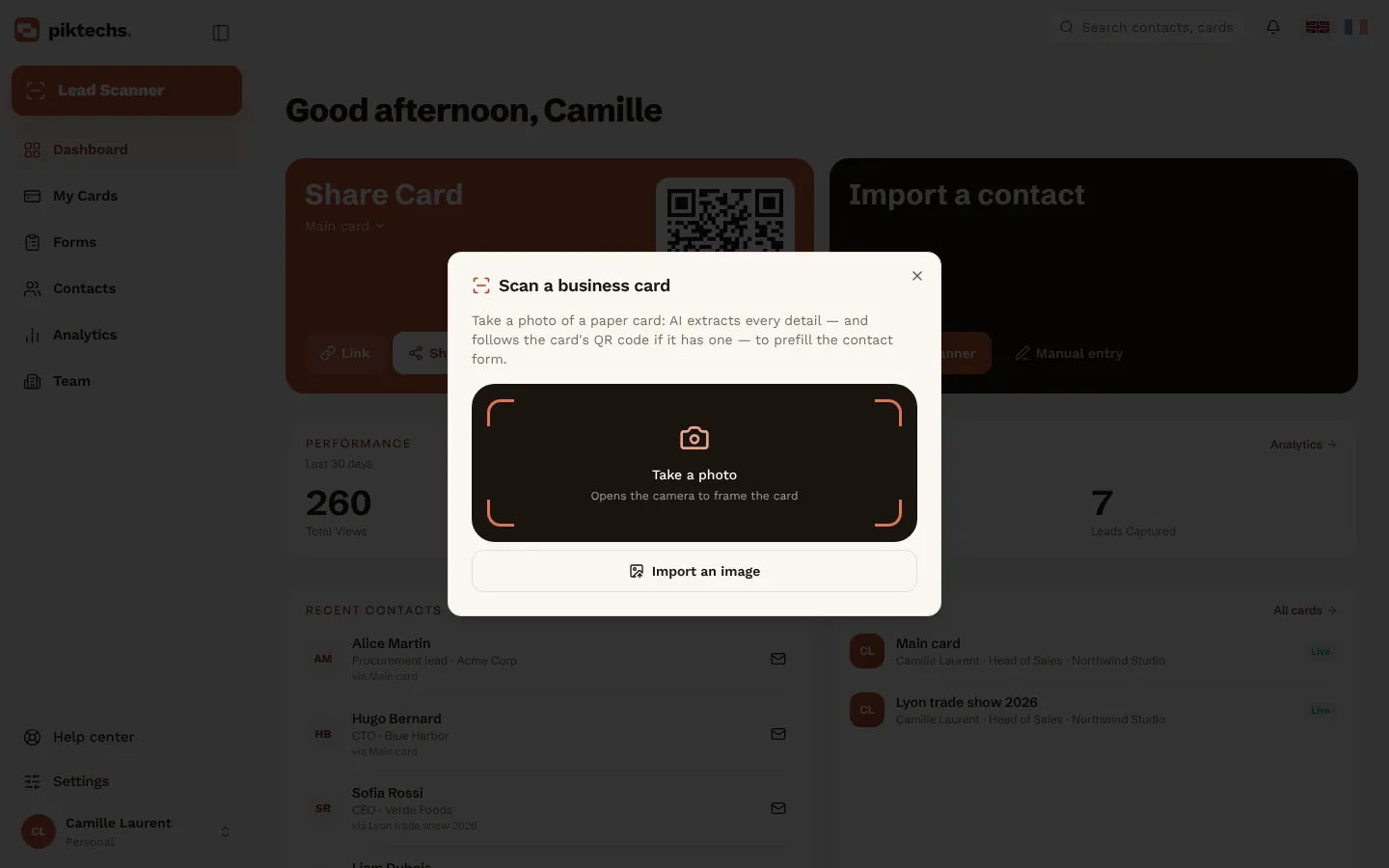
Piktechs screen, sample data.
The Lead Scanner reads the name, job title, company, email address, phone number and website. A “Read by AI” indicator shows that the record was filled in from the card. You stay in control: the record is saved only after you have checked it.
With no card to scan
A contact does not always have a paper card. In Contacts, the “Add a contact” button lets you type a record by hand. Scanned contacts, typed contacts and contacts from a digital card form all land in the same list, each with its source.
With no signal
In a trade show hall, the network rarely holds. Leads captured offline are kept on the device and sent as soon as the network is back. You can keep scanning and let the sending happen later.
How to scan business cards into an iPhone
Piktechs has no iOS App Store app: on an iPhone, the Lead Scanner runs in the browser, which is enough to scan. Sign in to your account in Safari, then follow the same four steps as on any phone.
- Open the Lead Scanner with the round button in the bottom bar.
- Take a photo of the card in the frame, or import an image from your photos.
- Check the fields that were read, then add a priority or a note.
- Save: the lead is added to Contacts.
The camera of an iPhone can save photos in HEIC, a format the Lead Scanner does not support. If an imported image is refused, switch the camera to the most compatible format in the iPhone settings, or export the image as JPEG before importing it. Taking the photo directly from the scanner avoids the problem.
Lay the card flat, light it evenly and avoid glare on varnished cards. The Lead Scanner is a Pro and Team feature, with a 14-day trial. Saving the contact into the iPhone address book itself is a different step: the record lives in Piktechs Contacts, and from there you sync it to your CRM or export it.
How to scan business cards into an Android phone
On Android you have two options: the Piktechs app from Google Play, or the browser. The scan works the same way in both.
- Open the Lead Scanner with the round button in the bottom bar.
- Photograph the card in the frame, or import an image from the gallery.
- Check the name, job title, company, email, phone and website that were read.
- Save the lead to Contacts.
Good light matters more than the phone model. Lay the card on a plain surface, fill the frame and tilt the phone to avoid reflections. As on every phone, an image in HEIC format is not supported: use JPEG.
Leads captured with no signal are kept on the device and sent as soon as the network is back, which helps in a trade show hall. Once the lead is in Contacts, you add a tag, a note or a voice note, set a reminder, then send it to your CRM.
Checking the fields after a scan
Checking is the quickest step of the path and the one that protects data quality. A record saved with a typo in the email address produces a message that never arrives.
Fields to check, in order
| Field | Frequent error | Check |
|---|---|---|
| Email address | Confused letter, missing dot, cut-off domain | Compare the domain with the website on the card |
| Name | Lost accent, first and last name swapped | Read it aloud with the card in front of you |
| Company | Acronym read instead of the full name | Compare with the email domain |
| Job title | Two titles merged | Keep the main title |
| Phone | Confused digit, missing country code | Check the international format |
| Website | Missing prefix | Open the address to see that it answers |
Correcting in one gesture
A second look pays off most on contacts you plan to write to the same week. For the others, a quick check of the email and the name is enough, and you can complete the rest later from the contact page.
Each field is corrected directly in the record before saving. If you spot a mistake afterwards, open the contact in Contacts and edit the field. Start with the email: it is the field used to follow up and to spot duplicates.
Qualify the contact at scan time
A record with no context is worth little. A name, a company and an email do not say why you kept the card. The best moment to add that is the moment of the scan, while the conversation is still fresh.
The Lead Scanner and the contact record offer four qualification elements.
- A priority. It shows whether the person should be followed up first or later.
- Tags. They group contacts: the name of the show, the topic, the product discussed.
- A note. One sentence is enough: “Wants a quote, follow up Thursday”.
- A reminder. A date or a delay: tomorrow, this week, next month.
The note can also be a voice note. Voice notes last up to two minutes, are saved as they are and can be played back from the contact. Piktechs does not transcribe them: for content you will need to search later, type a sentence as well.
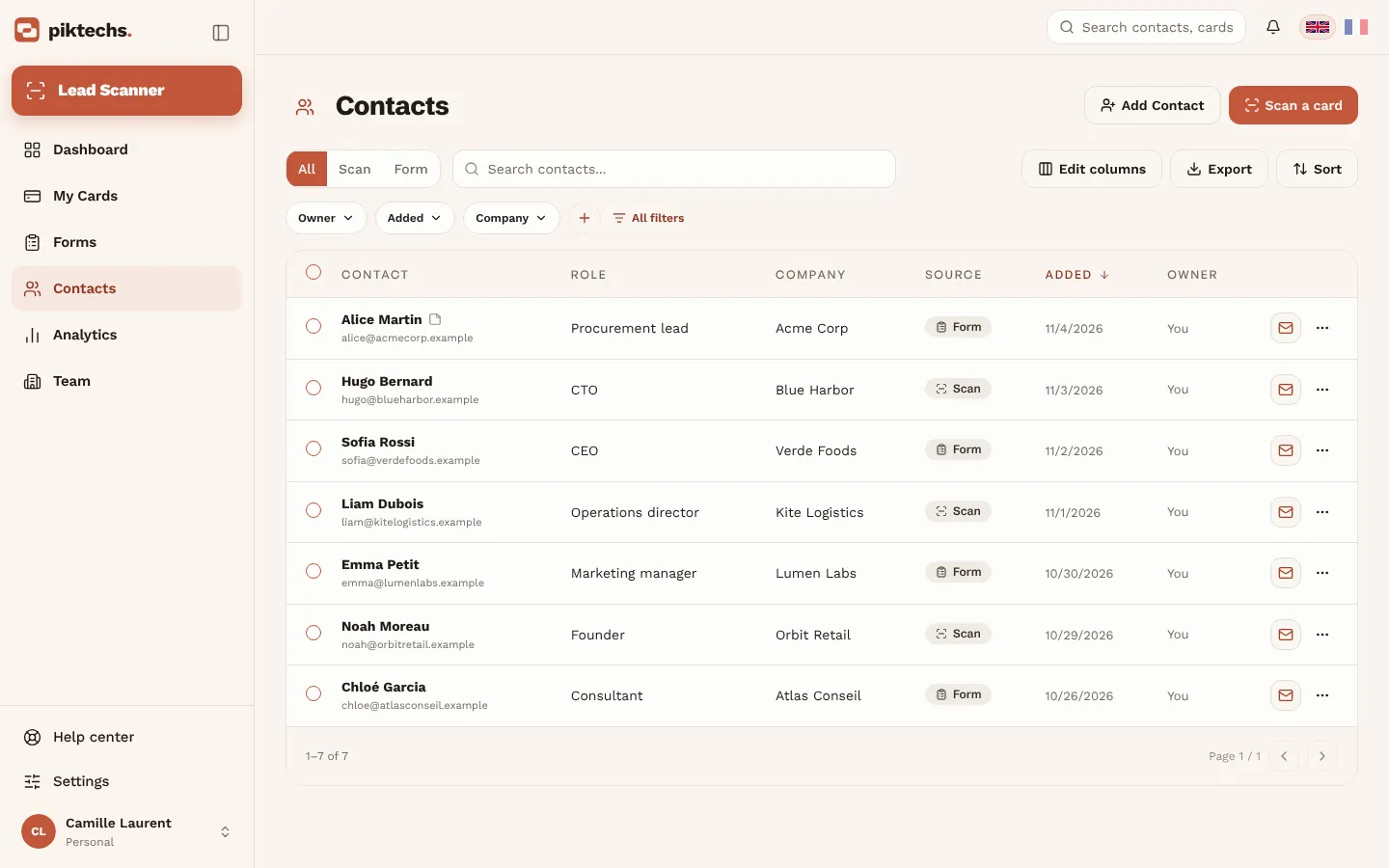
Piktechs screen, sample data.
Tag the show
Add the event name as a tag from the first scan. It lets you find all the contacts of one show later, filter the list and export the selection. Without a tag, you have to search by date, which gets confusing when two events follow each other. On a stand, keep to three to five questions, a priority and a note.
What to do with business cards after networking?
After networking, the routine is the same each time: scan the cards, qualify the contacts and send them to the tool where you follow up. Coming home with thirty cards in a pocket is the most common situation. The risk is putting off the work until the conversations are forgotten. An organised batch process avoids that trap.
A batch in five moves
- Sort the stack. Separate the cards to follow up first from the others, from your memory of each conversation.
- Scan in groups. Process priority cards first. Lay them on the same surface, in the same light.
- Check each record. Do not leave the checking for the end: the card is still in front of you.
- Add the show tag and a note. A few words are enough while the conversation is fresh.
- Set the reminder. Fix a date for each priority record before moving on to the next.
Do this work as close to the event as possible. A card received three weeks ago has lost its context, and the note you write then will be thinner than one written at the stand. The best habit is to scan during the show, between two visitors, so the stack never forms.
The article on digital business cards for trade shows shows how to capture leads at the stand itself, so the stack is smaller when you come home.
Sharing the batch in a team
If several reps come back from the same show, a shared tag gathers their contacts into one list. With the Team plan, a shared team workspace collects the contacts, and a lead can be assigned to a rep. The guide on trade show lead generation describes how a team organises a stand, and the article on how to collect leads at trade shows covers the other ways to collect, scanning paper cards among them.
Store business cards digitally: CRM, Excel, Outlook
A scanned record has value only if it reaches the place where you work. Piktechs offers three routes, depending on your tool.
| Destination | Route | Data received |
|---|---|---|
| HubSpot | Native sync | Name, email, phone, company, job title |
| Odoo | Native sync | Name, email, phone, company, job title |
| Zapier or Make | Webhook | The full lead: source, tags, notes, form answers |
| Excel | CSV export, then opening the file | Columns of the export |
| Outlook | CSV export, then import with field mapping | Columns of the export |
| Any other tool | CSV export | Columns of the export |
To a CRM
An owner or admin of the workspace connects HubSpot, Odoo, Zapier or Make under Team, then Integrations. After that, new leads go out automatically. The “Sync” button sends existing contacts to HubSpot or Odoo.
Piktechs is not a CRM and does not replace one. It captures and qualifies in the field, then feeds your CRM, which stays the system of record. There is no native Salesforce connector: the link goes through Zapier or Make. The guide to mobile CRM explains the difference between a mobile CRM and an app that feeds the CRM.
To Excel
There is no direct Excel connector. In Contacts, the “Export” button downloads a CSV file, which you open from the Data tab in Excel to keep the accents. The article on the business card scanner to Excel details how to open the file, which columns to keep and how to deduplicate in the spreadsheet.
One limit to know: the exported CSV has no phone column, and no priority, tags or notes. If you need them in your sheet, add them by hand. To keep the context all the way, syncing with a CRM carries more information than the file does.
To Outlook
There is no native Outlook connector either. The route uses the same CSV file, imported into the Outlook contacts with field mapping. The article on how to scan business cards to Outlook shows the mapping, on Outlook on the web and on the desktop.
No import the other way
Piktechs does not import a CSV file of contacts. The export works in one direction: leads come in through the scan, the digital card, a form or manual entry, and go out through the export or the sync.
Can you scan business cards into HubSpot?
Yes. With the Lead Scanner, a scanned card becomes a lead in Piktechs Contacts, and Piktechs syncs it to HubSpot natively. HubSpot does not read the card: Piktechs does the reading and the qualification, then feeds HubSpot, which stays your system of record.
- An owner or admin of the workspace connects HubSpot under Team, then Integrations.
- Scan the card, check the fields and add a priority, tags and a note.
- New leads go out to HubSpot automatically. The “Sync” button sends existing contacts.
HubSpot receives the name, email, phone, company and job title. Odoo works the same way. For another CRM, including Salesforce, which has no native connector, the link goes through Zapier or Make by webhook and carries the full lead: source, tags, notes and form answers. Without any CRM, the CSV export of Contacts is enough to work, but it has no phone, priority, tags or notes column. The article on connecting a digital business card to HubSpot and your CRM covers the setup in more detail.
Organise and deduplicate your contacts
A contact base decays quickly without a few rules. Two problems dominate: duplicates and records with no filing.
Avoiding duplicates
A duplicate appears when you scan the same card twice, when two colleagues meet the same person, or when the contact already existed. Three habits limit the problem.
- Search before scanning when you think you know the person. A quick search by name or company is enough.
- Use the email as the marker. Two records with the same address are the same person.
- Merge in the right place. If you use a CRM, it is the reference: it usually has its own tools to find and merge duplicates. In a spreadsheet, the email column lets you remove repeated rows.
Simple filing
Good filing rests on three markers.
- The source: scanned card, form, manual entry. Piktechs records it on each contact.
- The event: the tag of the show or meeting.
- The priority: one level, not ten. Too many levels help nobody.
Avoid very many or nearly identical tags, such as “show”, “Show” and “show-2026”. Pick a naming rule and keep it.
GDPR: scanning other people’s cards
A business card holds personal data: name, job title, email, phone. Scanning it and keeping it is data processing. A few general principles apply, to be checked with your data protection officer or a lawyer for your own situation.
Legal basis
For prospecting between professionals, legitimate interest is a frequently used basis, provided the message relates to the person’s work and their rights are respected. When someone hands you their card, the context of the exchange matters: a card given to receive an offer does not carry the same weight as a card picked up from a bin at a show.
Informing the person
The person must be able to know who holds their data, for which reason, and how to exercise their rights. The simplest way is to say so in the first follow-up message: who you are, how you got their details, how to ask for deletion.
Right to object and retention
A person who asks not to be contacted again must be removed from your follow-up lists. Do not keep records without limit: set a retention period suited to your activity and delete contacts that no longer answer.
Data hosting
Piktechs hosts data in the European Union and records consent with each lead. These elements help compliance but do not replace it: the legal basis and the retention period stay your responsibility.
Common mistakes
- Scanning without checking. A wrong email address makes the follow-up fail.
- Photographing a glossy card under a lamp. Glare hides the characters.
- Putting off the processing of cards. The context of the conversation is lost.
- Forgetting the event tag. Finding the contacts of a show becomes slow.
- Leaving records inside a scan app. A record that arrives nowhere is useless.
Checklist before putting the stack away
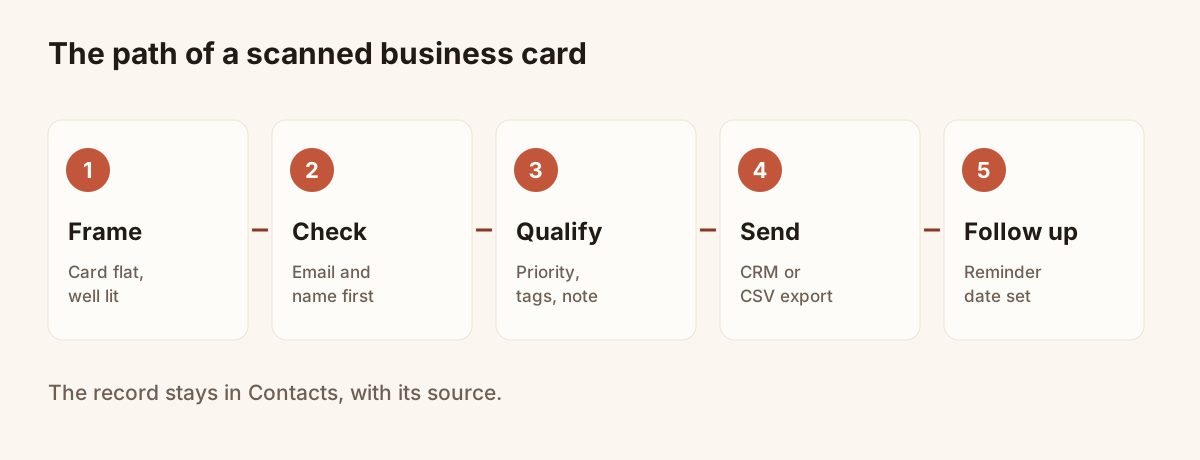
The path of a card, from photo to follow-up.
Before throwing away or filing a paper card, check five points.
- The record is saved in Contacts.
- The email and name have been checked.
- The event tag and a note are in place.
- A reminder is set if the contact is a priority.
- The record has gone to your CRM, or the CSV file is exported.
Frequently asked questions
How do I scan a business card with a phone?
Open the Lead Scanner, photograph the card or import an image, check the fields that were read, then save. The record is added to Contacts. Lay the card flat, well lit, and avoid glare.
Can I scan business cards for free?
The Lead Scanner is included in the Pro and Team plans, with a 14-day trial. The Free plan does not include it. You can also photograph the card with the phone camera, but nothing is read then: you retype the fields.
Do I have to retype the details after scanning?
No, except to correct a field. The tool fills in the record from the card, and you check it before saving. A mistake is corrected in one gesture, in the record.
How do I send scanned cards to Excel or Outlook?
There is no direct connector for either. Export your contacts as CSV from Contacts, then open the file in Excel or import it into Outlook. The export has no phone column, and no priority, tags or notes.
Is it legal to store business cards I receive?
Yes, within GDPR and with rules: a legal basis, informing the person, a limited retention period and respect for the right to object. These principles are general. For your own situation, have the approach checked by a lawyer.
Read next
 Article
Business card scanner to Excel: from scan to spreadsheet
Scan business cards, export them as CSV and open the file in Excel without breaking accents. Recommended columns and duplicate removal included.
 Article
Scan business cards to Outlook: import them as contacts
Scan business cards, export them as CSV and import them into Outlook on the web or on desktop, with the field mapping that makes the import work.
 Article
Card scanner for phone: 3 ways to scan a business card
Phone camera, dedicated app or CRM-connected app: compare three ways to scan a business card with your phone, then follow the steps to do it.
Scan your first card today
Pro includes Lead Scanner, forms and Contacts. 14-day trial.