Scan business cards to Outlook: import them as contacts

To scan business cards to Outlook, scan them with Lead Scanner, export your contacts as a CSV from Contacts, then import the file into Outlook. There is no direct connector: the CSV file is the path. The tricky part is matching the file's columns to Outlook's contact fields.
For the full picture, read the complete guide: scanning business cards.
Scan the cards
Lead Scanner is included in Pro (EUR 9 a month, EUR 84 a year) and in Team, with a 14-day trial. On a phone, it is the round button in the bottom bar.
- Open "Lead Scanner".
- Take a photo of the card, or import an image.
- Check the fields that were read, and add a note or a priority.
- Save. The lead is added to Contacts.
Read each record before you save: a typo in a contact's email will be imported into Outlook as it is. Framing tips are in the article on how to scan a business card with your phone. For an overview of the tool, see the business card scanner page.
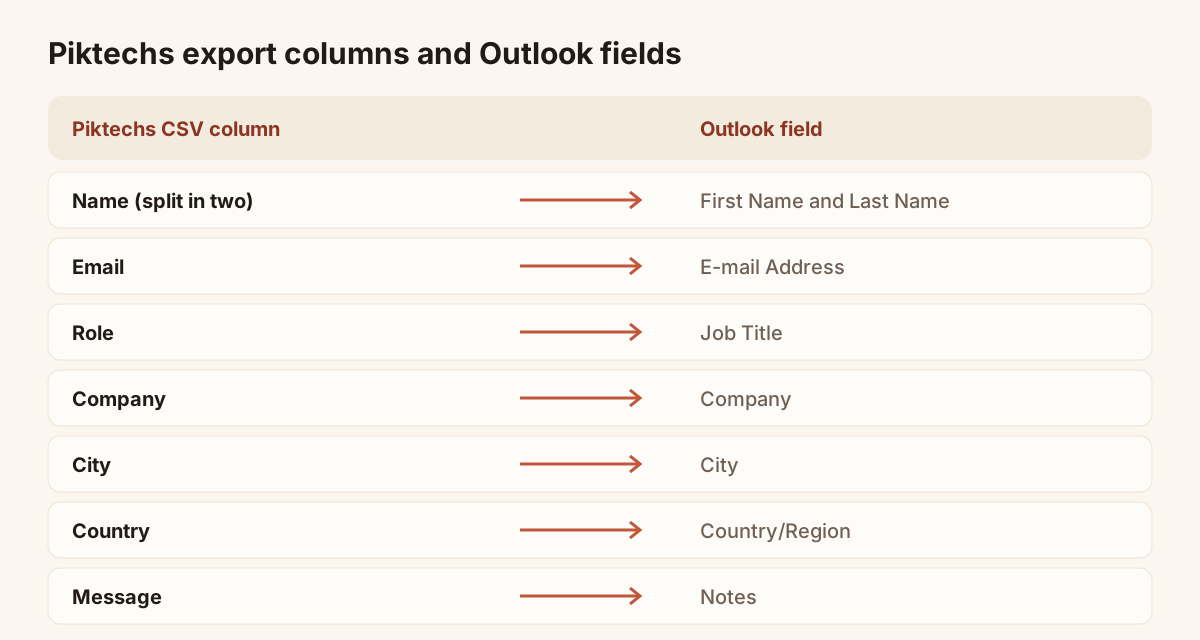
Piktechs export columns and the Outlook field each one maps to.
Export to CSV
In Contacts, click "Export". Choose the contacts you ticked or all contacts in the view, with a limit of 100, 500, 1,000 or all. To bring only the cards from one event into Outlook, filter the list first, then export that view.
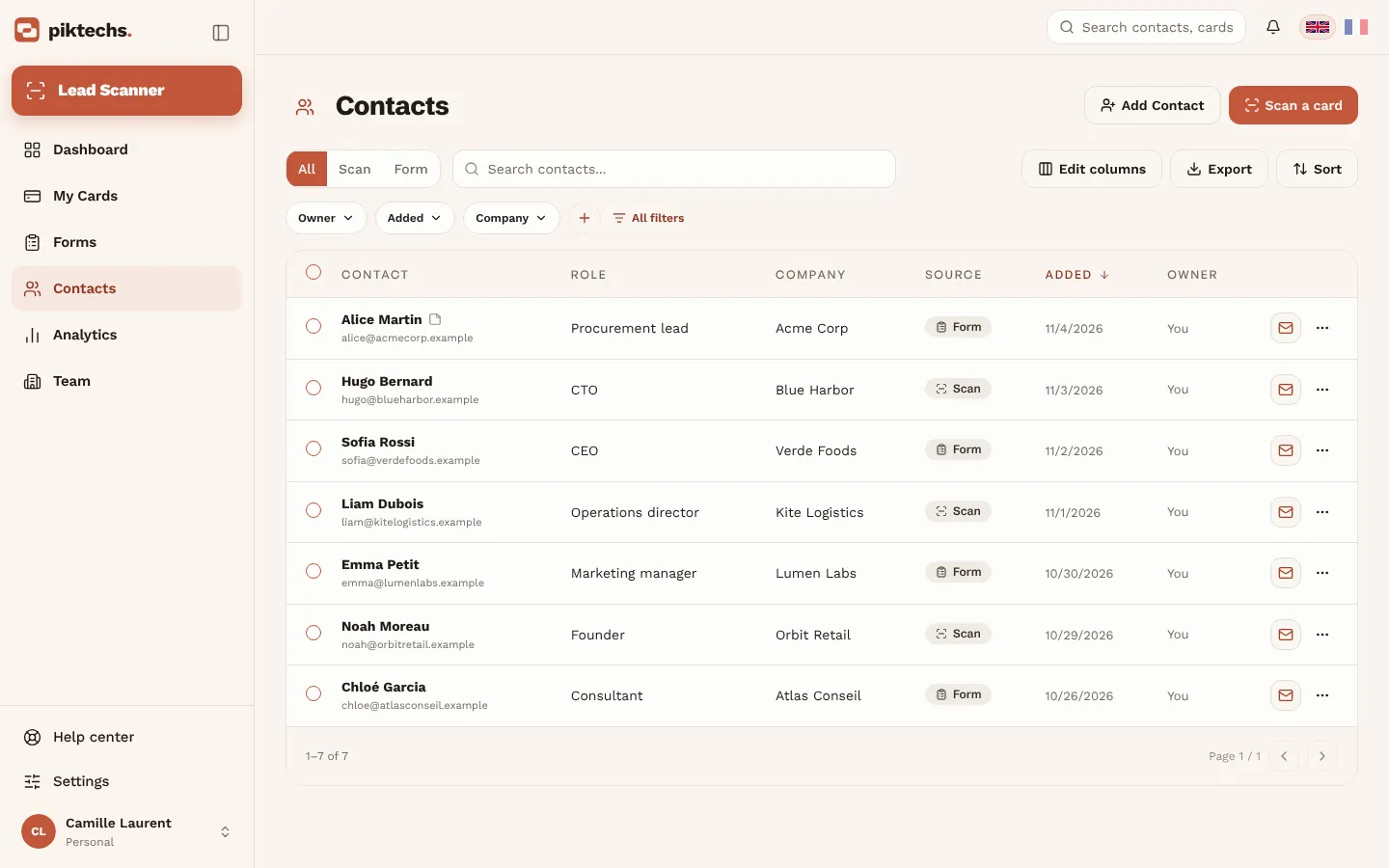
Piktechs screen, sample data.
The file is a CSV: comma-separated values, fields in quotes, UTF-8 text. It has 17 columns: Name, Email, Role, Company, City, Country, Message, Source, Card, Owner, Date, Created by, Modified by, Modified on, Assigned to, Form answers and Marketing opt-in. It has no phone column at the time of writing. If you want numbers in Outlook, add that column by hand in a spreadsheet before the import.
Prepare the file before importing
Outlook does not know Piktechs' column names. Two edits make the import more reliable, in a spreadsheet such as Excel (see the article on business card scanner to Excel for opening the file without breaking accents).
- Split the Name column in two: first name and last name. Outlook files contacts by first and last name.
- Keep only the useful columns: Email, Role, Company, City, Country, Message. Delete the audit, owner and card columns, which only Piktechs understands.
If you edit the file in Excel, save it as CSV UTF-8 (Comma delimited) so accents survive. Then rename the headings to the names Outlook recognises, for example "First Name", "Last Name", "E-mail Address", "Job Title" and "Company". If the import ignores columns, check the headings first.
Import into Outlook
Microsoft regularly changes where these menus are and how they are named: treat the steps below as a guide, not a fixed rule.
Outlook on the web
- Open People, then Manage contacts.
- Click Import contacts.
- Choose the CSV file with Browse.
- Start the import with Import.
Outlook for desktop (classic version)
- Click File, then Open & Export, then Import/Export.
- Choose Import from another program or file, then Next.
- Choose Comma Separated Values, then Next.
- Select your file. Choose how Outlook handles duplicates, then Next.
- Choose the destination folder, Contacts, then Next.
- Click Map Custom Fields to match the file's columns to Outlook's fields, then Finish.
Before the full import, try three or four rows. A test file is fixed in a minute. An import of two hundred badly filed contacts means finding and deleting them one by one. If your version of Outlook allows it, create a separate contacts folder for the first run too: you can empty it in one go if the mapping is wrong.
Map the fields
In the desktop mapping window, the left list shows your file's columns and the right list shows Outlook's fields. Drag each column onto the field you want. The table gives the usual match for the Piktechs export.
| Piktechs column | Outlook field |
|---|---|
| Name (split) | First Name, Last Name |
| E-mail Address | |
| Role | Job Title |
| Company | Company |
| City | City |
| Country | Country/Region |
| Message | Notes |
The country is exported as an ISO code (for example FR or DE), not as a name. Outlook will show it as it is. Replace it with the country name in the spreadsheet if you prefer.
The message left by the contact has no field of its own in Outlook: Notes is the most natural place for it. Priority, tags and your qualification notes are not among the CSV export columns.
After the import, open three contacts and compare them with the spreadsheet: name in the right place, email intact, company filled in. Then search Outlook for one person you know was in the file. If both checks pass, the rest of the list is almost certainly fine. If not, delete the imported batch, fix the headings or the mapping, and run the import again. Keep the original export untouched so you can always start over from it.
Common import errors
- Every column was ignored. The headings were not recognised. Rename them as above, or use the desktop mapping window.
- Accents are garbled. The file was not read as UTF-8. Reopen it in Excel through the text import, check the file origin, then save it as CSV UTF-8.
- Everything is in one column. The separator is not the comma expected. Check it when you open the file.
- Contacts appear twice. Remove duplicates in the spreadsheet before importing, on the Email column, or let desktop Outlook handle duplicates.
When to prefer sync
A CSV import suits a one-off list: the cards from a trade show, a batch of meetings. It copies the contacts once, with no link to the leads that come after. If your reps scan cards all year and you use HubSpot or Odoo, sync is simpler: each new lead goes through by itself, with its source. To compare the options, see the mobile CRM page.
Frequently asked questions
Is there a direct connector between Piktechs and Outlook?
No. The CSV file is the path. To send leads automatically to a tool, Piktechs syncs natively with HubSpot and Odoo, and with other tools through Zapier or Make.
Can I import a contact file into Piktechs?
No. The export runs one way. Leads enter Piktechs through scanning, the digital card, a form or manual entry.
Do imported contacts stay up to date in Outlook?
No. The import copies the contacts once. If you correct a record in Piktechs, export again or correct it in Outlook too.
Do voice notes come through in the file?
No. Voice notes are recorded, not transcribed, and the CSV export holds text. You replay them from the contact's record in Piktechs.
Read next
 Guide
How to Scan Business Cards Into Your Phone and CRM
Scan paper business cards with your phone camera, check the details, and send each contact to your CRM with notes and a follow-up reminder.
 Article
Card scanner for phone: 3 ways to scan a business card
Phone camera, dedicated app or CRM-connected app: compare three ways to scan a business card with your phone, then follow the steps to do it.
 Article
Business card scanner to Excel: from scan to spreadsheet
Scan business cards, export them as CSV and open the file in Excel without breaking accents. Recommended columns and duplicate removal included.
Scan your first card today
Pro includes Lead Scanner, forms and Contacts. 14-day trial.