How to Create a Digital Business Card on iPhone
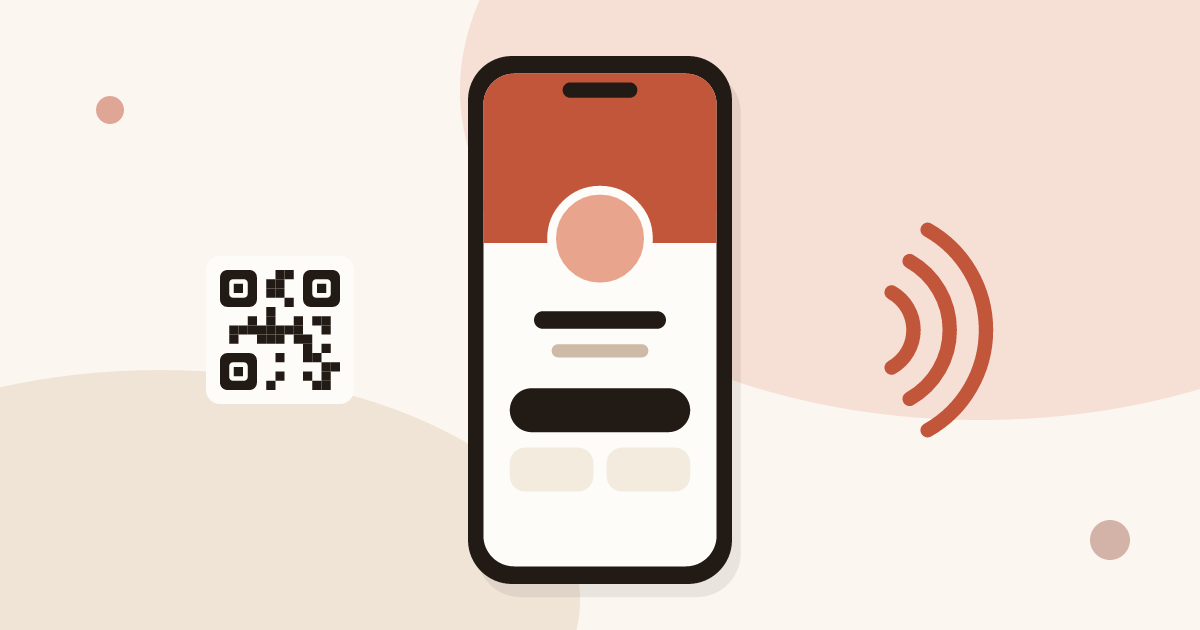
To create a digital business card on iPhone, open Piktechs in Safari, sign up for free, fill in your profile and publish the card. There is no Piktechs app on the App Store: everything runs in the browser. Once published, the card is shared by QR code, link or NFC tag, and the other person installs nothing.
For the full picture, read the guide on how digital business cards work.
How to create a digital business card on iPhone
The steps below take a few minutes. They follow the card editor of the app, as described in the help center.
- Open Safari on your iPhone and go to piktechs.com, then choose to create a free account. You sign up with your email address. The Free plan needs no credit card and has no time limit.
- Open "My cards" and tap "New Card".
- Fill in your profile: photo, name, job title and company.
- Add your contact details and your social links. Keep only details you are happy to show a stranger: a work email, a work phone number, one or two profiles.
- Pick a style.
- Save, then tap "Publish". Your card gets its own address, its own QR code and a link.
Drafts are unlimited on every plan. Only published (live) cards count toward your plan: one on Free, five on Pro. So you can prepare a second card in draft, for another job or another event, without paying for it.
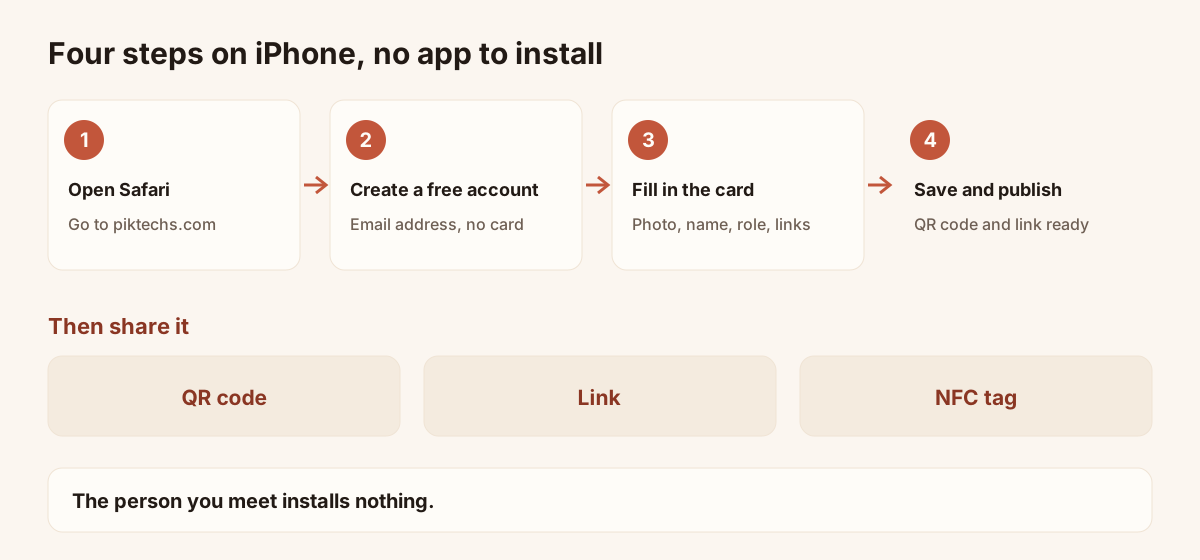
Creating and sharing a card from an iPhone, step by step.
How to make a digital business card on iPhone that people open
A card made on a phone is read on a phone, often in a corridor or at a stand, in a few seconds. Three choices help.
- Use a clear photo. A face or a logo, square, in good light. Take it before you open the editor, from the Photos app.
- Put the action first. The person who opens the card should find your name, your role and one way to reach you without scrolling.
- Keep the text short. A one-line description is enough. The card is not a CV.
You can also use the card editor to check how the card looks. Open the public link in another Safari tab and read it as a stranger would.
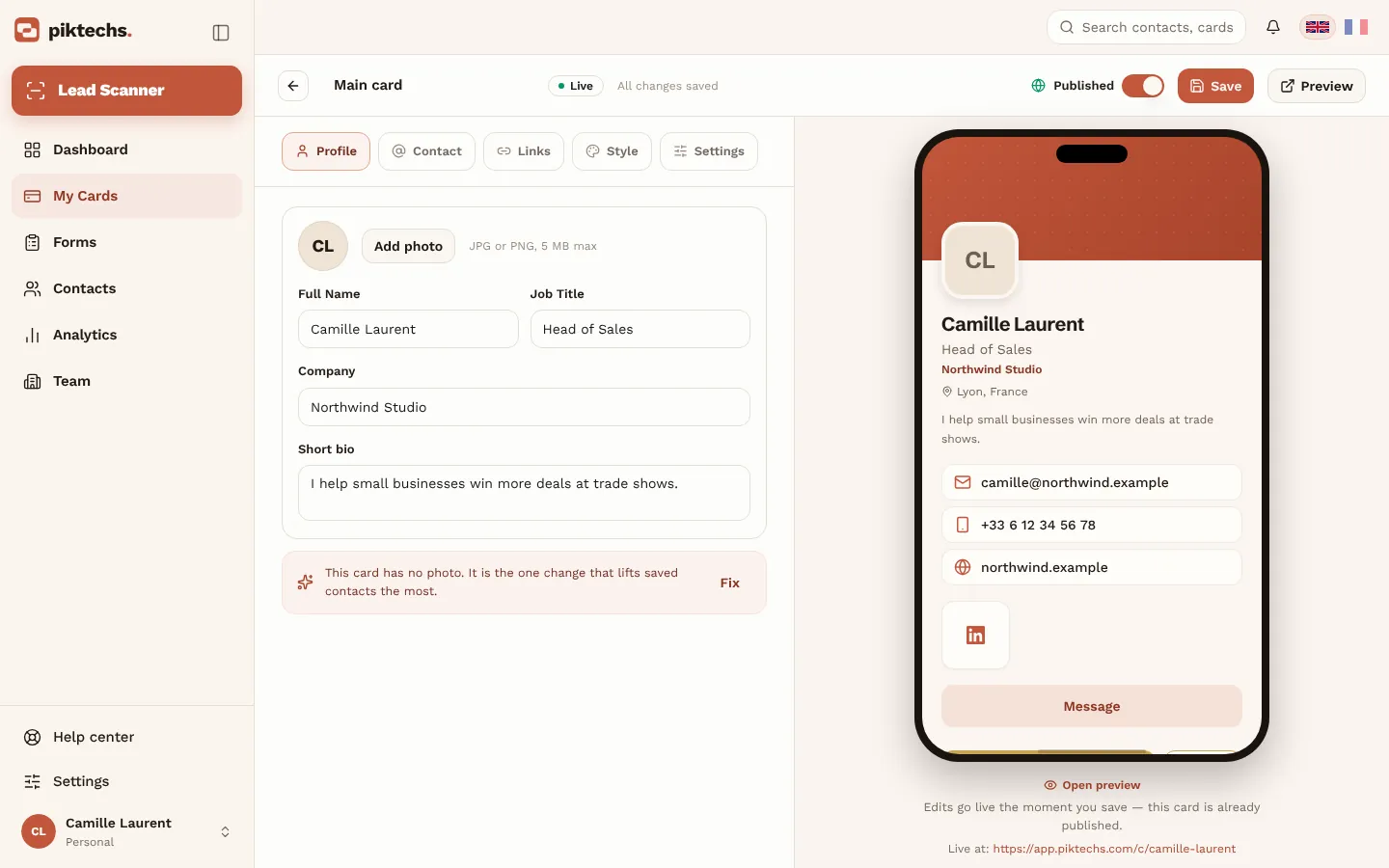
Piktechs screen, sample data.
Add the card to your iPhone Home Screen
Piktechs runs in Safari, so you can keep it one tap away. Open your card (or the Piktechs site) in Safari, tap the Share button and choose "Add to Home Screen". An icon appears next to your apps and opens the page in Safari.
Do this for the page you use most, either the one that shows your card's QR code or your list of cards. When someone asks "Do you have a card?", you open the QR code from the Home Screen without typing an address.
Share your card from an iPhone
Publish the card, then use "Share" in "My cards". You get four options, and the first two work on every phone.
- QR code. Every card has a unique QR code. Show it on your screen: the other person points their camera at it and the card opens, with nothing to install.
- Link. Copy the link and send it by Messages, WhatsApp, email or any chat.
- NFC tag. Tap an NFC tag with your phone. If it is not linked yet, Piktechs asks you to sign in, then to choose the card it should open. From then on, each tap opens that card. Piktechs does not sell a physical NFC card: you link a tag, or a sticker, that you bought elsewhere.
You do not need NFC to use Piktechs. The QR code and the link work out of the box, and NFC is one more way to share on recent iPhone and Android phones.
NameDrop and My Card are Apple's, not Piktechs'
Two other ways to share contact details exist on an iPhone, and they come from Apple.
- "My Card" in Contacts is the contact card of the Contacts app. You fill it in once and send it like any contact.
- NameDrop lets two recent iPhones, held close together, exchange contact details.
Both share a contact card with fixed fields. Neither is a feature of Piktechs, and neither works with someone who has another kind of phone. A Piktechs card opens in any browser, so it suits a meeting where you do not know which phone the other person has. It also stays up to date: when you change your job title, the QR code and the link still point to the same card.
The other person's view
The person you meet opens your card in their phone's browser. They see your profile, your links, and a button to save your contact in one tap (vCard). They do not create an account or install an app.
If you have a form on the card, they can also leave their own details. Forms are a Pro and Team feature. The answers arrive in your Contacts list with their source, and you can export them as a CSV file or send them to HubSpot or Odoo, or to another tool through Zapier or Make.
Update your card without sharing it again
You change a phone number or a role? Open "My cards", tap "Edit", change the field and save. Changes go live when you save. The QR code, the link and the NFC tag keep pointing to the same card, so nothing needs reprinting and nobody needs a new link. The article on creating a digital business card shows the editor in more detail.
Limits on iPhone
- No iOS app. There is no Piktechs app on the App Store. You use the browser, and the Home Screen icon is a shortcut to it.
- Android has an app. The Android version of this guide covers the Google Play app.
- Pro features need a plan. Forms, Contacts, the Lead Scanner and analytics are on Pro and Team, from the pricing page. The free card, the QR code and the link are free.
- Apple's sharing stays separate. Piktechs does not feed NameDrop or "My Card".
To create your card now, see Piktechs digital business cards.
Frequently asked questions
Is there a Piktechs app for iPhone?
No. On iPhone, Piktechs runs in Safari. You can add it to your Home Screen to open it faster. The person who receives your card needs no app either.
Do I need an NFC card to share my card from an iPhone?
No. The QR code and the link work on every phone. NFC is an extra: you link an NFC tag to your card, and a tap on the tag opens it.
Does a person with an Android phone see my card?
Yes. The card is a web page, so it opens in the browser of any phone, iPhone or Android, from a QR scan, a link or an NFC tag.
Are NameDrop and My Card part of Piktechs?
No. They are Apple's features for sharing a contact card between iPhones. Piktechs cards are separate and work with any phone.
Can I create a digital business card on iPhone for free?
Yes. The Free plan includes one live card, with no time limit and no credit card. Drafts are unlimited.
Read next
 Guide
How Do Digital Business Cards Work? QR Codes, NFC, Links and vCards Explained
QR code, NFC, link or vCard: see how digital business cards work, how contacts get saved on iPhone and Android, and how leads follow.
 Article
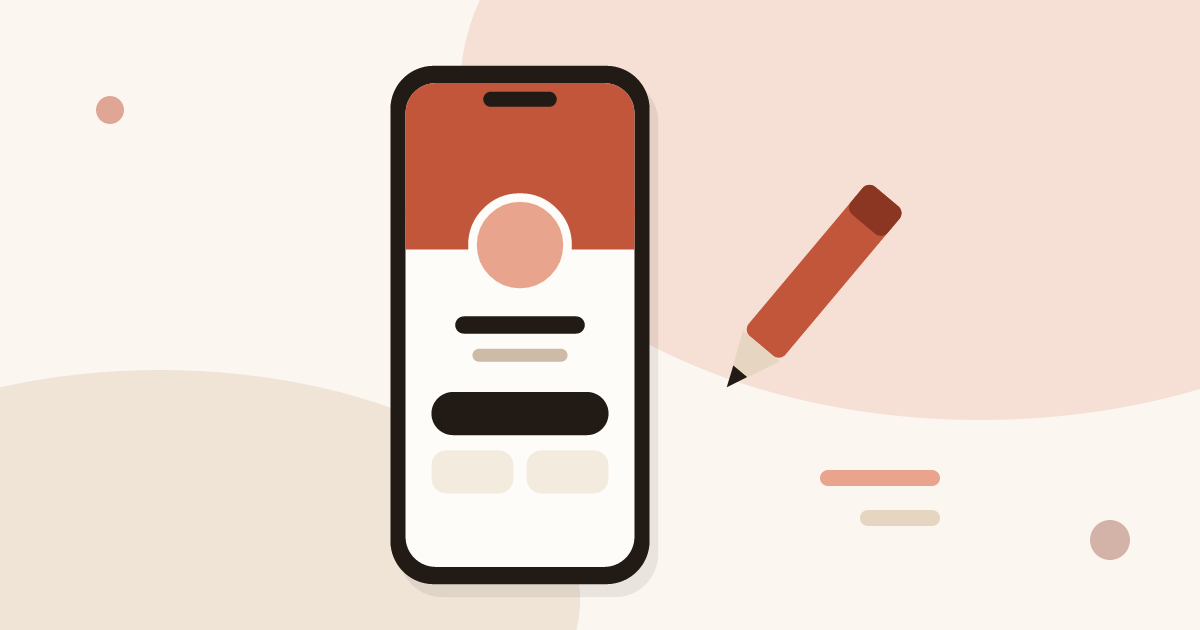
How to Create a Digital Business Card (Step by Step, Free)
Create a free digital business card in 5 steps: pick a layout, add your links, share it by QR code or NFC. No app needed for the people you meet.
 Article
How to Make an Electronic Business Card for Your Email Signature
Create an electronic business card for Outlook or Gmail, and compare it with a live card link in your signature that shows views and contact saves.
 Article
How to Create a Virtual Business Card for Email, Zoom and LinkedIn
Make a virtual business card you can share on Zoom, Teams, LinkedIn and email. Step-by-step guide with a free card and QR code tips.
 Article
Are Digital Business Cards Safe? Privacy, Security and GDPR
Check the data a digital business card shares, who can see it, and how to stay GDPR compliant when you collect leads with a card or a QR code.
 Article
Digital Business Cards for Teams: Brand, Manage and Track Every Card
Roll out digital business cards to your whole team: one locked brand kit, roles, lead assignment and stats per card, from EUR 15 per seat.
Create your digital card
The Free plan includes one live card. No app needed for the people who receive it.