How to Create a Digital Business Card (Step by Step, Free)
To create a digital business card for free, open a Piktechs account, click “New Card”, fill in your profile, contact details and links, pick a layout and a theme, then publish. You share the card by QR code, link or NFC, and the people you meet save your contact without installing an app.
The five steps below run on the Free plan, with screenshots of the app. For the mechanics behind the card (QR code, NFC, link, vCard), read the guide on how digital business cards work. Is the idea new to you, and would the definition of a digital business card be a better place to start?
How to create a digital business card: the 5 steps at a glance
A digital business card is a web page with your name, job title and ways to reach you. You build it once in an editor, and one QR code and one link then point to it for as long as you keep it online.
| Step | Action in Piktechs | Result |
|---|---|---|
| 1 | Open “My Cards” and click “New Card” | An empty card, saved as a draft |
| 2 | Fill in your profile, contact details and links | The content of the card |
| 3 | Pick a layout and a theme | The look of the card |
| 4 | Save, then publish | A live card with its own link and QR code |
| 5 | Share by QR code, link or NFC | Your contact saved in the other person’s phone |
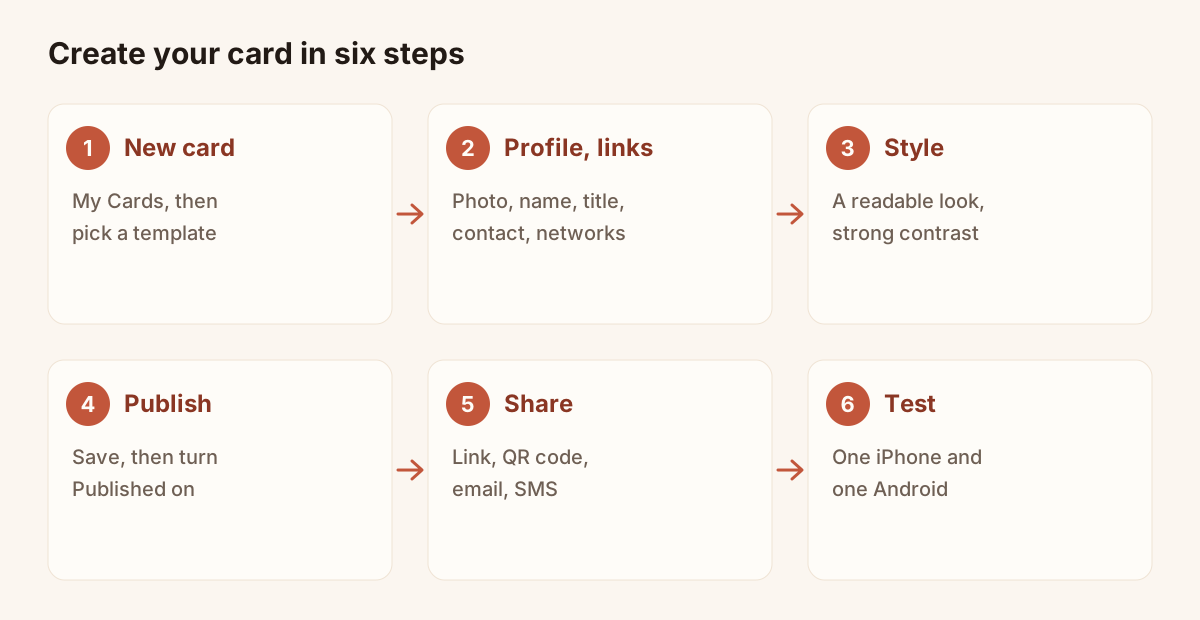
The five steps of this article, followed by a test on a second phone.
Information to prepare first
Gather four things and the steps go quickly:
- An email address to open the account. The Free plan asks for no credit card and has no time limit.
- A photo of yourself, facing the camera, in JPG or PNG and under 5 MB. A logo fits a company card.
- Your details: name, job title, company, phone, email, website.
- Your links: LinkedIn and the networks that matter in your job.
How to make a digital business card on the Free plan
The Free plan gives you one live card, forever. Drafts are unlimited on every plan: only published cards count towards the limit, so you can try several versions and publish the one you prefer.
The Free card includes the QR code, the link, NFC and the contact save as a vCard, with three layouts and five themes. Custom colours, a logo, a banner and the qualification form belong to Pro and Team.
You work in a browser, on a phone or a computer. An Android app exists on Google Play. There is no iOS App Store app: on an iPhone, Piktechs runs in the browser.
Step 1: create a new card
Sign up with your email address. Once signed in, open “My Cards” and click “New Card”. The screen offers a template to start from.
“My Cards” is also the place where you will find your cards later, each with its status: live or draft. A new card is a draft. Nobody can open it until you publish it in step 4.
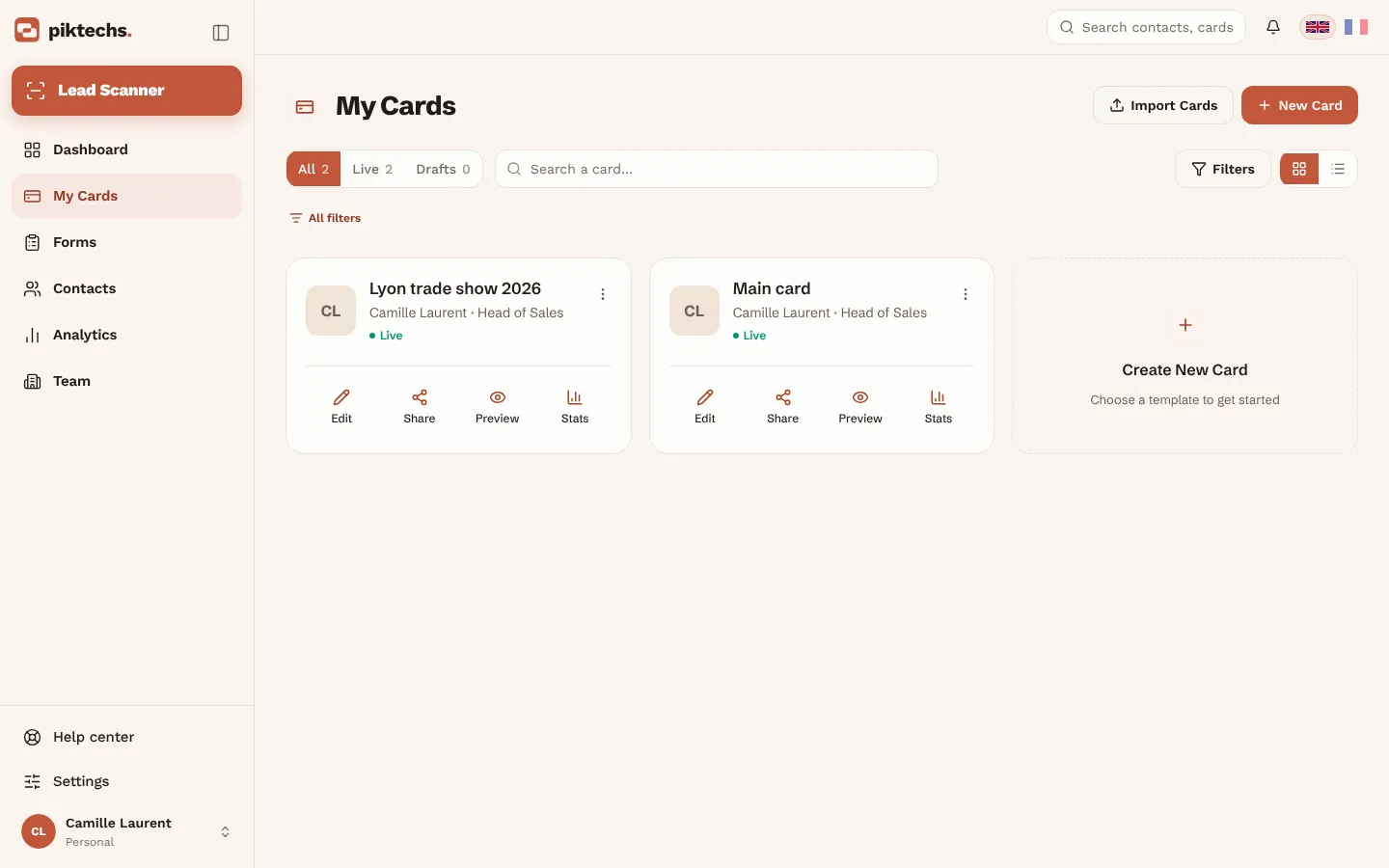
Piktechs screen, sample data.
Step 2: fill in your profile, contact details and links
The editor opens with a preview of the card next to the fields. Start with the profile: photo, name, job title, company. Then add your contact details and your social links.
Three habits make the card more useful to the person who receives it:
- Enter the number and the email you answer. They are copied into the other person’s address book, and that is where they will look for you in six months.
- Write your job title as you say it out loud. “Sales manager, north region” reads better than an internal abbreviation.
- Keep three or four links. Each extra link makes the useful ones harder to find. LinkedIn, your website and one booking or messaging link cover most jobs.
Read every field again on the preview. A typo in a phone number makes the whole card useless, and you are the only person who can spot it.
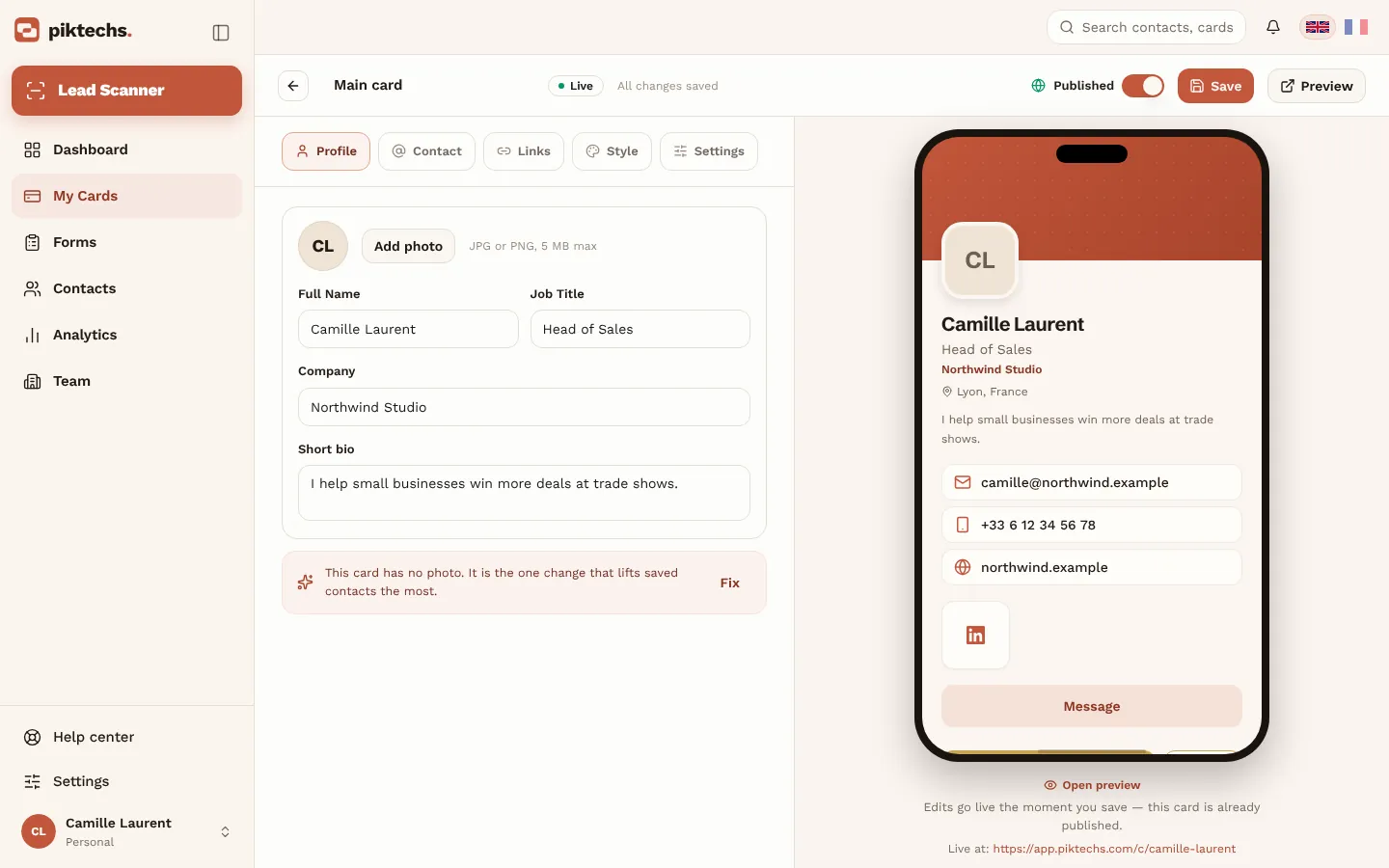
Piktechs screen, sample data.
Step 3: pick a layout and a theme
Open the style settings and choose how the card looks. The Free plan includes three layouts and five themes. The layout sets where the photo, the name and the buttons sit. The theme sets the colours.
Choose for readability. Good contrast between text and background and a sharp photo count for more than effects. Look at the preview at arm’s length: if you can read the name and the job title, the card is fine.
You can change the layout or the theme later. The card updates for everyone who already has your link or your QR code.
On Pro and Team you can also set custom colours, a logo and a banner. On Team, the brand kit locks colours, logo and style on every card of the team.
Step 4: save and publish
Click “Save”, then “Publish”. From that moment the card is live: it has its own link and its own QR code, and it counts as your one live card on the Free plan.
Publishing is reversible. Taking a card offline deletes nothing, and you can publish it again later. To change a detail, click “Edit” in “My Cards”: the change goes live when you save.
Step 5: share it by QR code, link or NFC
In “My Cards”, click “Share”. The menu gives you the link and the QR code.
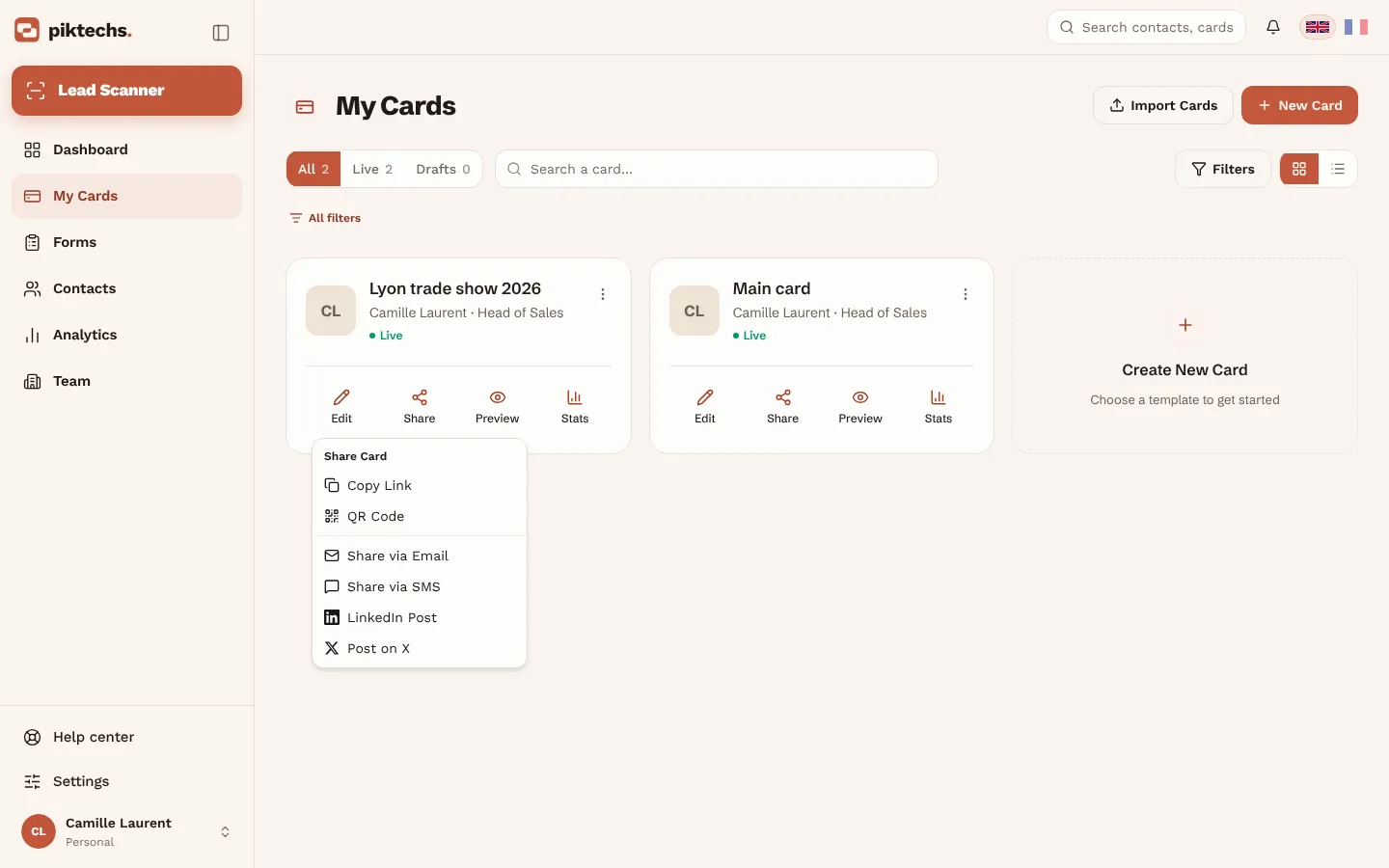
Piktechs screen, sample data.
| Way to share | When to use it | For the other person |
|---|---|---|
| QR code on your phone | Face to face, at a meeting or on a stand | They scan it with the phone camera |
| QR code in print | On a paper card, a flyer, a stand banner | Same scan, from the printed code |
| Link | By email, text message or chat | They tap the link |
| NFC tag | Face to face, with a recent phone | They tap their phone on the tag |
| Email signature | In every email you send, with your card link pasted in your mail client | They click through to the card |
Three points to know:
- The QR code, the link and the NFC tag all open the same card. When you change your details, you share nothing again and reprint nothing.
- NFC is optional. Piktechs sells no physical NFC card. If you own an NFC tag, tap it with your phone, sign in, and pick the card it should open. Not every phone reads NFC, so keep the QR code within reach.
- The email signature is set in your mail client. Copy the link of the card from the Share menu and paste it into the signature settings of Outlook or Gmail. You can add the downloaded QR code image too.
The person in front of you installs nothing. The card opens in their phone’s browser and one tap saves your contact as a vCard, on iPhone and on Android.
Test the card before you hand it out
Borrow a second phone, ideally one iPhone and one Android phone, and act as a visitor:
- Scan the QR code with the camera.
- Check the photo, the name and the job title.
- Tap the button that saves the contact, then open the new entry in the address book.
- Tap each link.
- Repeat on mobile data, away from wifi.
Each way of sharing has its own article: the ways to share a digital business card, the steps on an iPhone and on an Android phone.
How do I make a digital business card that people save?
A card gets saved when the other person understands in two seconds who you are and which button to tap. Six mistakes get in the way.
- No photo. A sharp photo, facing the camera, helps the person place you when they open the contact a week later.
- A card left as a draft. It looks finished in the editor, and nobody can open it until you publish it.
- Too many links. Past four or five, the visitor no longer knows which one to open.
- Details nobody re-read. Check the phone number and the email on the preview before you publish.
- A test on your own phone only. Your phone is signed in to your account and connected to wifi. Your visitor’s phone is neither.
- No invitation to scan. When you show the QR code, say the next step out loud: “Scan it and you can save my contact.”
A digital card and a paper card work together. You can print the QR code on your paper card: you hand over the paper card, and the scan puts your contact in the phone.
How can I make my business card digital?
Two different jobs hide behind this question: putting your own paper card online, and turning the paper cards you receive into contacts.
Your own paper card
Use your paper card as the brief for the five steps. Type its details into the editor: name, job title, company, phone, email, website. Add the two things paper cannot carry, your photo and your links. Then publish.
For the next print run, put the QR code of your card on the paper version. The code keeps pointing to the same card, so a new phone number or a new job title needs no reprint.
A vCard file (.vcf) is another way to pass on your details, by email for instance. Unlike the card, the file keeps the details it had on the day you sent it. The article on how to create a vCard compares the two.
Turn the paper cards you receive into contacts with Lead Scanner
Lead Scanner reads the paper cards other people give you. It is a Pro and Team feature, not part of the Free plan. Both plans come with a 14-day trial, which asks for a payment method.
- Open “Lead Scanner”. On a phone it is the round button in the bottom bar.
- Take a photo of the card, or import an image.
- Check the fields that were read, and add a note or a priority.
- Save: the lead is added to Contacts.
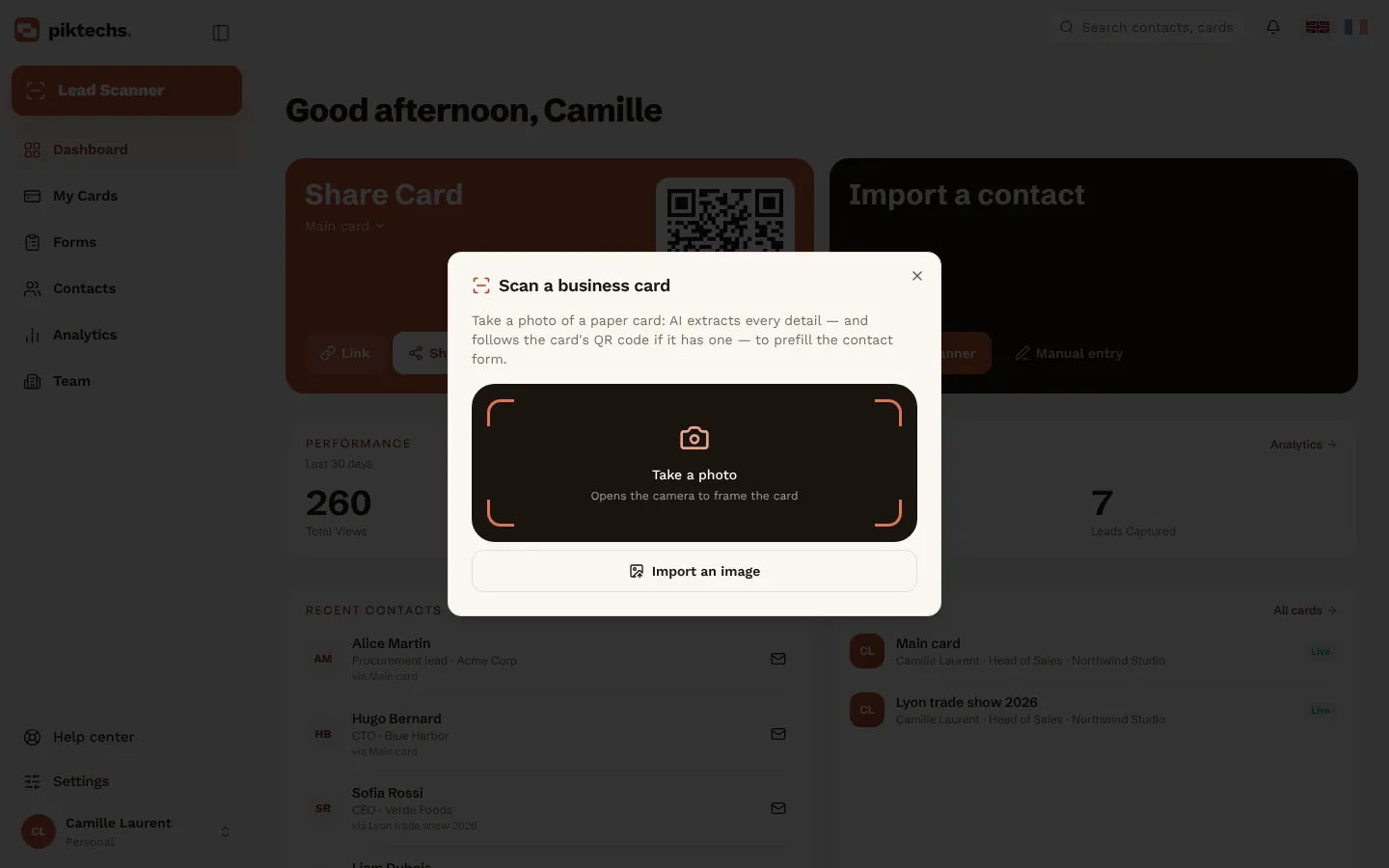
Piktechs screen, sample data.
For a clean scan, lay the card flat in good light, fill the frame and avoid reflections. Use a JPEG: HEIC images are not supported. The scanner also works without signal. Leads stay on your device and are sent when you are back online.
From Contacts you can set a priority and tags, add notes or a voice note, and schedule a follow-up reminder. Voice notes are recorded, not transcribed. Contacts export as a CSV file, and a team can sync new leads to HubSpot, Odoo, Zapier or Make. The page on digital business cards shows how the card, the form and Contacts fit together.
Frequently asked questions
How do I create a digital business card for free?
Sign up with your email address, click “New Card” in “My Cards”, fill in your profile, contact details and links, pick a layout and a theme, then publish. The Piktechs Free plan includes one live card with its QR code and link, with no credit card and no time limit.
How to make a digital business card without an app?
You create the card in a browser, on a phone or a computer. An Android app exists, and on an iPhone Piktechs runs in the browser. The person who receives the card installs nothing: it opens in their browser from a QR code, a link or an NFC tap.
How do I create a digital business card for a whole team?
Each person can follow the five steps. On the Team plan, an admin locks the colours, the logo and the style with the brand kit, and “Import cards” creates one card per row of a CSV file. Team includes five live cards per seat, from three seats.
Do I have to share my card again when my details change?
No. Click “Edit” in “My Cards”, change the detail and save. The QR code, the link and the NFC tag keep pointing to the same card, so the update is live without reprinting anything.
Is a digital business card template enough to start?
Yes. Piktechs offers a template when you create the card, and the Free plan includes three layouts and five themes. Start from the template, replace the sample content with your own, and adjust the look last.
Read next
 Guide
How Do Digital Business Cards Work? QR Codes, NFC, Links and vCards Explained
QR code, NFC, link or vCard: see how digital business cards work, how contacts get saved on iPhone and Android, and how leads follow.
 Article
What Is a vCard? How to Create One (and Why a Digital Card Beats a .vcf File)
A vCard (.vcf) is a contact file. Learn how to create one by hand or with a generator, turn it into a QR code, and see where it falls short.
 Article
How to Create a Contact Card on iPhone and Android (and Share It)
Set up your contact card on iPhone or Android, share it with NameDrop or a QR code, and know when a digital card works better.
 Article
How to Update a Digital Business Card (No Reprint Needed)
Changed jobs, phone number or title? Update your digital business card in seconds: every QR code and link you have shared stays valid.
 Article
How to Share a Digital Business Card: 7 Ways (QR, NFC, Link, Email, Text)
QR code, NFC tag, link, text, email, signature, QR code on a slide: 7 ways to share a digital business card and get details back.
 Article
Digital business card app: the features to look for
Which features a digital business card app must have, which are useful and which are gimmicks, with a table to check any offer against.
Create your digital card
The Free plan includes one live card. No app needed for the people who receive it.