How to Create a Contact Card on iPhone and Android (and Share It)
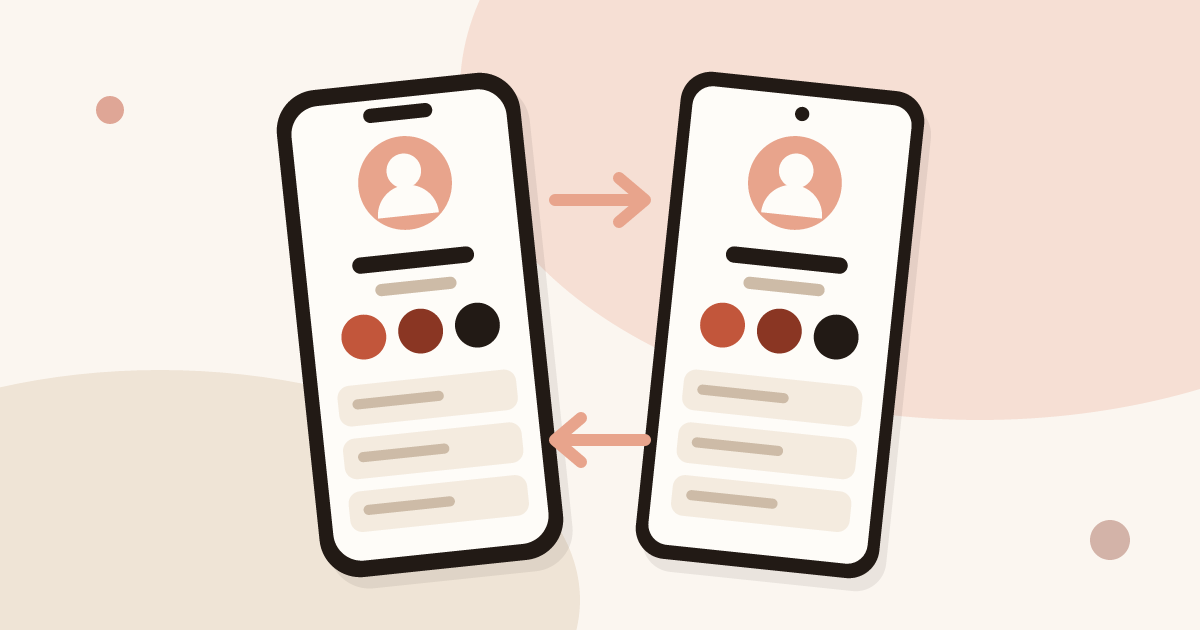
A contact card is your own entry in your phone's address book. Fill it in once, then send it to anyone in a few taps. On iPhone it is called My Card, in the Contacts app. On Android you create a contact with your own details in Contacts and share it from there.
If you need the card to work on every phone and stay up to date, read how digital business cards work. The steps below start with the built-in tools.
How to create a contact card on iPhone
The iPhone keeps your own details in a card named My Card. Follow these steps:
- Open the Contacts app and tap your name at the top of the list, under My Card.
- Tap Edit.
- Fill in name, company, job title, phone number, email address and website. Use add phone, add email and add url for each extra field.
- Tap Done.
If My Card is empty or points to the wrong entry, open Settings, go to Contacts and choose My Info to select the right contact. On recent iOS versions, Contacts settings sit under Apps. Menu names move between versions, so look for "My Info" if the path differs.
To add a photo and a full-screen display for outgoing calls, open My Card, tap Edit, then Contact Photo & Poster. The poster is the screen people see when you call them. It does not replace a business card, but it makes your own card look finished.
How to make a contact card on Android
Android phones use the Contacts app, often named Google Contacts. There is no single card that is "yours" in every version, so you create a contact with your own details:
- Open the Contacts app and tap Create contact (the plus button).
- Enter your name, company, job title, phone number, email address and website.
- Tap Save.
Your entry now sits in your address book like any other. Name it clearly, for example with your company, so you can find it fast when someone asks for your details. Menu labels depend on the phone brand and the Android version.
How do I make a contact card on my phone and share it?
Once the card exists, sharing takes a few taps. The method depends on the two phones involved.
Share your card from an iPhone
Open Contacts, tap My Card, then Share Contact. Pick a way to send it: Messages, Mail, AirDrop or another app. The other person receives your details as a contact file and can save them.
On recent iPhones, NameDrop shortens this. Hold the top of your iPhone close to another iPhone running a recent system version. Each phone offers to share or only receive the contact. NameDrop works between Apple devices. It is not an option when the other person has an Android phone.
Share your card from an Android phone
Open your own contact, tap the menu (the three dots), then Share. Choose a method: a messaging app, email or a nearby sharing tool such as Quick Share. The recipient gets your details as a contact they can save.
Share it as a file or text
Both systems can send a contact as a .vcf file. It works across systems: an Android phone opens a file sent from an iPhone, and the reverse. The format is described in the article on how to create a vCard.
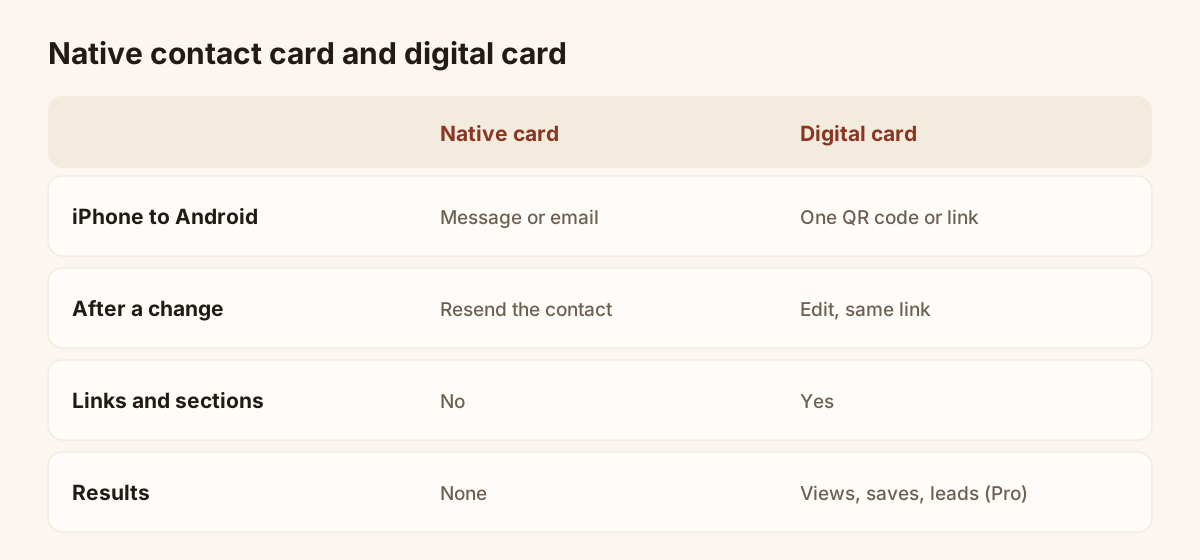
Native contact card and digital card, compared.
Which details to put on a contact card
Keep the card short. A contact that someone saves should be useful in a year:
- Name and company. Write your full name the way you introduce yourself.
- Job title. It reminds the other person why they saved you.
- One phone number. Pick the one you answer. Write it with the country code.
- One email address. Use a work address, not a personal one.
- Website. A single link to your company or your card.
Leave out your home address and your birthday. A stranger does not need them, and a shared contact cannot be recalled.
Check the card before you share it
A contact you send cannot be corrected on other people's phones. Take two minutes before the first send:
- Send the card to your own email address and open it on another device.
- Check the spelling of your name and company.
- Call the number and write to the address to confirm both work.
- Make sure the website link opens.
Limits of a native contact card
The built-in card is free and always there. It also has clear limits for professional use:
- Cross-system sharing is clumsy. NameDrop connects Apple devices only. Between an iPhone and an Android phone, you fall back on a message or an email.
- The copy is frozen. Each contact you send is a snapshot. If you change your number, everyone who saved the old one keeps it.
- No links or sections. A contact holds fields. It cannot carry a booking link, a product page or a short presentation.
- No result for you. You never learn who opened or saved your details.
- The recipient needs your phone nearby. NameDrop and nearby sharing both require physical closeness, which rules out a scan from a printed card.
For a casual exchange between friends, none of this matters. For a sales meeting, a trade show or a networking event, it does.
When a digital card works better
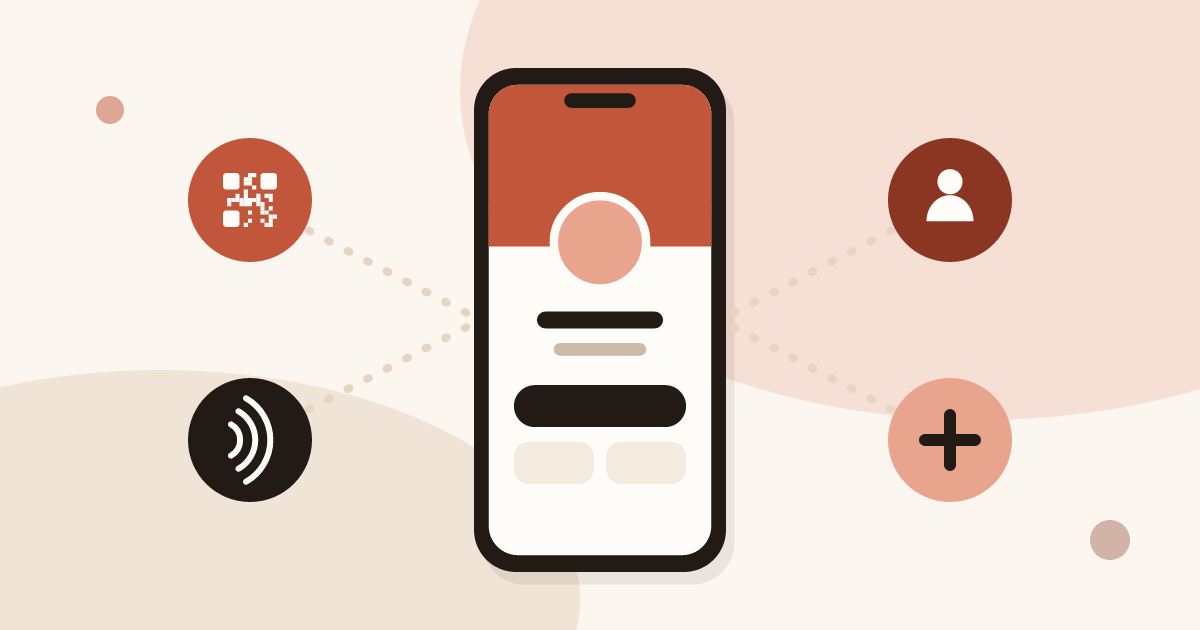
A digital card is a page that opens on any phone, with no app to install. The visitor scans a QR code, taps a link or taps an NFC tag, then saves your contact in one tap (vCard).
The practical gains over the native card:
| Need | Native contact card | Digital card |
|---|---|---|
| Share with an iPhone and an Android phone | Different tools on each | One QR code or link |
| Update after sharing | Resend the contact | Edit the card, same link |
| Add links and sections | No | Yes |
| Share from a printed code | No | Yes |
| See results | No | Card views, contact saves and new leads, with Pro and Team analytics |
The Free plan gives you one live card, enough to replace the native card for sharing. Pro adds analytics and lead forms. You can compare plans on the digital business cards page.
On iPhone, Piktechs runs in the browser: there is no App Store app. On Android, an app is available on Google Play. In both cases, the person you meet installs nothing. If you want to build the card, the guides on a digital business card on iPhone and a digital business card on Android go through each phone step by step.
Keep the native card and add a digital one
The two are not rivals. Keep your My Card or Android contact up to date for people who ask you for your number. Use the digital card for the moments when you meet someone new and want them to keep more than a phone number.
A practical routine:
- Fill in the native card once and check the number and email.
- Create your digital card and publish it.
- Show the QR code from your phone or print it.
- When someone asks "can you send me your details?", show the code instead of typing a number.
If your details change, update both. The native card is a copy on your phone. The digital card is the page everyone else sees.
Frequently asked questions
Can I share my iPhone contact card with an Android phone?
Yes, with a message, an email or a file. Use Share Contact from My Card and pick a method the other person can read. NameDrop is not available toward Android, since it connects Apple devices.
Does a contact card update itself on other people's phones?
No. A shared contact is a copy. If your details change, the people who already saved the old version keep it, unless you send the new card. A digital card avoids the problem because the QR code and the link keep pointing to the same page.
What is the difference between a contact card and a digital business card?
A contact card is an entry in your address book that you send as a file. A digital business card is a page with a save button, links and sections, and you can edit it after sharing. The save button generates the contact file for the visitor.
Do I need to install an app to share a digital card?
Neither you nor the person you meet needs one on iPhone, where Piktechs runs in the browser. An app exists on Google Play for Android. The recipient installs nothing in any case.
Read next
 Guide
How Do Digital Business Cards Work? QR Codes, NFC, Links and vCards Explained
QR code, NFC, link or vCard: see how digital business cards work, how contacts get saved on iPhone and Android, and how leads follow.
 Article
What Is a vCard? How to Create One (and Why a Digital Card Beats a .vcf File)
A vCard (.vcf) is a contact file. Learn how to create one by hand or with a generator, turn it into a QR code, and see where it falls short.
 Article
How to Update a Digital Business Card (No Reprint Needed)
Changed jobs, phone number or title? Update your digital business card in seconds: every QR code and link you have shared stays valid.
 Article
How to Share a Digital Business Card: 7 Ways (QR, NFC, Link, Email, Text)
QR code, NFC tag, link, text, email, signature, QR code on a slide: 7 ways to share a digital business card and get details back.
 Article
How to Create a Digital Business Card on Android
Create a digital business card on Android with the Piktechs app or your browser, share it by QR code, link or NFC tag and keep the contacts you meet.
 Article
Digital business card app: the features to look for
Which features a digital business card app must have, which are useful and which are gimmicks, with a table to check any offer against.
Create your digital card
The Free plan includes one live card. No app needed for the people who receive it.