How to Put a QR Code on a Business Card (Size, Placement, Link Target)
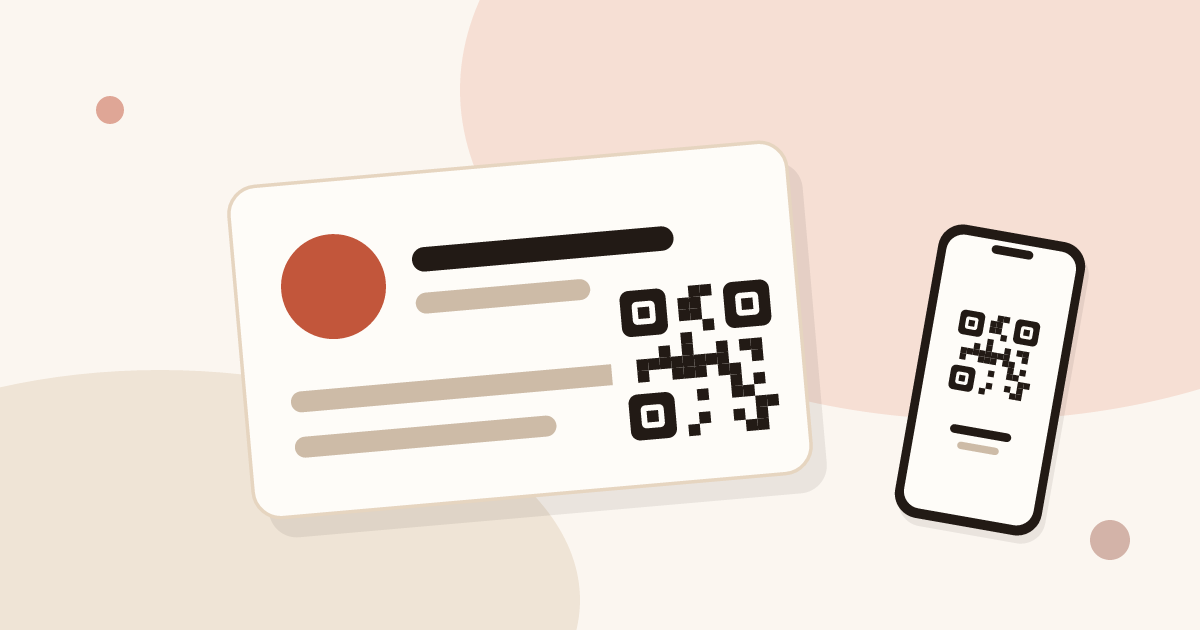
To put a QR code on a business card, print it on the back or in a clear corner, about 2 cm across as a rule of thumb, dark on light, with empty space all around. Link it to a digital card rather than to fixed contact details, so you can edit the card without reprinting. Test a printed copy first.
For the full picture, read the complete guide: business cards with a QR code.
Size: how big should the QR code be?
There is no standard size for a business card. These are rules of thumb that hold for most cards and most phones.
- Starting point. About 2 cm across for a card scanned at arm’s length.
- Denser pattern, larger code. A code with many small squares needs more room for each square. A short web address makes a simpler pattern than a full vCard, so it can stay small.
- Longer reading distance, larger code. A card read from a table is not a poster read from three metres. For a stand or a poster, make the code far larger.
- Never below the limit of your phone. If your own phone struggles, a stranger’s will too.
The print test below settles the question for your card, your paper and your printer.
Contrast and quiet zone
A phone camera has to find the code and tell dark squares from light ones. Two things help it.
Contrast. Dark modules on a light background read best. Black on white is the safe choice. Light-on-dark codes, gradients, and colours close to each other can fail on some phones. A brand colour works if it stays clearly darker than the background.
Quiet zone. Leave a clear border around the code, free of text, images and the card edge. It is the empty margin that lets the camera see where the code starts. Do not crowd it with a logo, a line or a fold.
Two other points matter. Keep the code square, because a stretched code is often unreadable. And do not put a logo in the middle unless you tested it: it hides part of the pattern.
Placement on the card
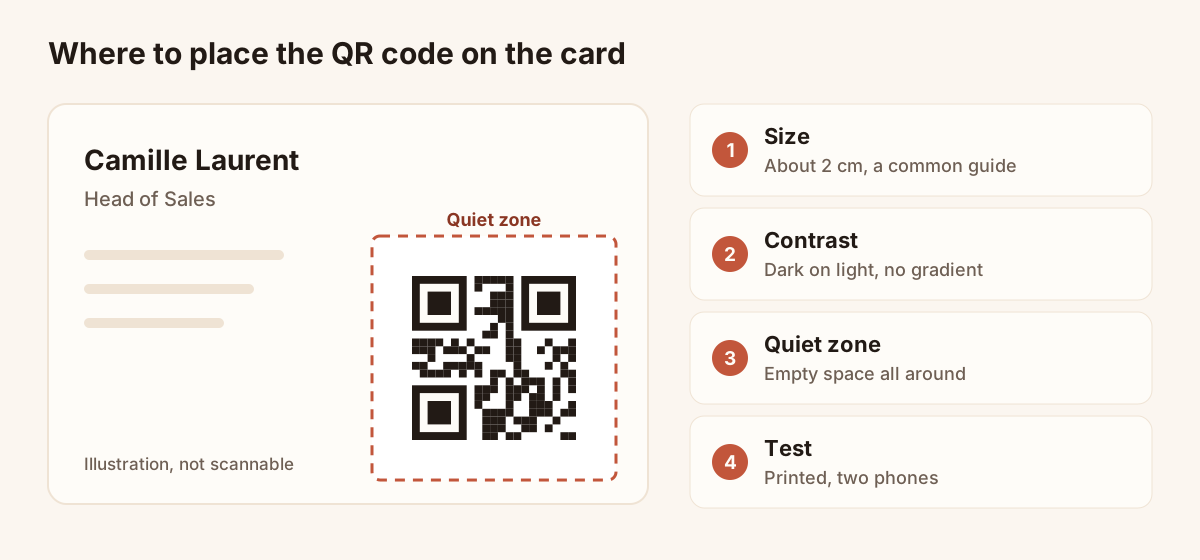
Where to place the QR code, and the points to check.
- Back of the card. The back is often empty, so the code can be large with a wide margin. Add your name above it.
- Front, clear corner. If the front has room, a corner works. Keep the code away from the edge, where the cutter can clip the margin.
- Away from folds and trims. A fold crosses the pattern and a trim removes the quiet zone.
- Matt or lightly coated paper. Very glossy paper reflects light and can make a scan harder.
- Next to a short invitation. Many people do not know the camera reads codes. A few words, such as “Scan to save my contact”, give the reason to scan.
Where the QR code should link
A QR code carries a short text. For a business card, two texts make sense.
A vCard holds your details: name, phone, email, company. The phone offers to add the contact, even with no connection. But the details are frozen in the pattern: if your number changes, you reprint the card. The pattern is also dense, so the code needs more room.
A link to a digital card holds only the address of a page. The visitor opens it in their browser, sees your photo and links, and saves your contact in one tap. The pattern is simpler, which helps at a small size. You can edit the page whenever you like, and the printed code stays valid.
For a card handed out over months, link to a digital card. Phone numbers and job titles change, and printed paper cannot be corrected. Keep the vCard for a case where nothing can connect, such as a hall with no signal.
A link also opens options a vCard cannot offer: a form for the visitor to leave their own details and statistics on views and saved contacts. Both are Pro and Team features. For the full comparison, read static and dynamic QR codes. If you prefer to create the vCard itself, read how to create a vCard.
Get the QR code of your Piktechs card
Piktechs has no standalone QR code tool. Each card has its own QR code, which points to the card’s address. If you have no card yet, create a digital business card first.
- Open “My Cards” in Piktechs.
- Check that the card is published: a QR code leads to a live page, not to a draft.
- Click “Share” on the card.
- Choose “QR Code”.
- Show it on your phone, or use it for print.
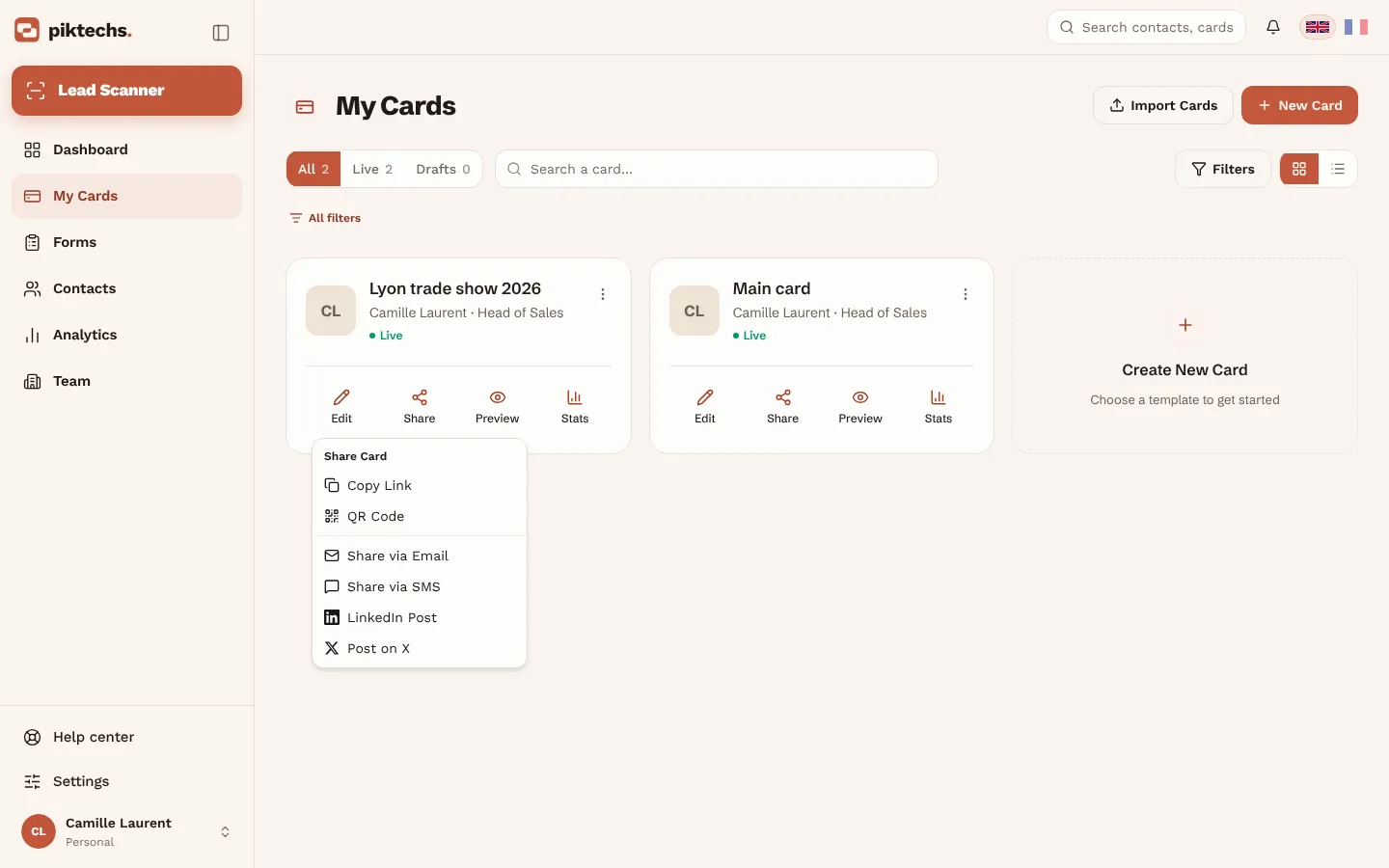
Piktechs screen, sample data.
The code opens with the phone camera and the person installs nothing. The QR code, the link and the NFC tag keep pointing to the same card, so a change of number is live as soon as you save.
The Free plan allows one live card, so one QR code. With Pro and Team, each extra card has its own code. The page on digital business cards describes the plans. To give the card away in other ways, read how to share a digital business card.
Prepare the file for the printer
Three checks save a reprint before the file leaves your hands.
- Give the printer a sharp code. A blurry or heavily compressed image blurs the squares. Ask the printer which format keeps the edges clean, and check the proof for fuzzy edges.
- Fix the size on the file. Put the code at its final size on the card layout and tell the printer not to scale it.
- Keep it flat. Embossing, foil and spot varnish over the pattern make squares harder to read. Use them elsewhere on the card.
In Piktechs, you download the QR code as an image from the Share screen of the card. Give that image to the printer, and ask which format keeps the edges clean before the layout is final.
Test before you print
A test takes a minute. A reprint costs far more.
- Print one copy at actual size, on the real printer and paper, not just a screen preview.
- Scan it with at least two phones, for example an iPhone and an Android.
- Scan it at arm’s length, in a dim room, as you would at a trade show.
- Check that the page opens quickly, looks right on a phone and that the save-contact button works.
- Re-read the details on the card before sending the file to the printer.
Common mistakes
- A code too small for the density of its pattern.
- Low contrast, such as a light grey code on a cream background.
- No quiet zone, with the code touching the edge of the card.
- A code pointing to a draft or to an offline page.
- A vCard code on a card that has to last for months.
- No test on any phone but your own.
- No invitation next to the code.
Frequently asked questions
Can I put a QR code on a paper business card?
Yes. Print the code on the back or in a clear corner, large enough to be read at arm’s length, with a quiet zone around it. Test a printed copy before you run the whole batch.
What is the minimum size of a QR code on a business card?
There is no single rule. As a common guide, about 2 cm across for a card scanned at arm’s length. The denser the code, or the further it is read from, the larger it should be. A print test settles it.
Do I need an app to scan the QR code?
No. The camera of recent iPhones and Android phones reads QR codes. The person installs nothing and the card opens in their browser.
Where should the QR code link?
A digital card is the better choice for a card used over months, because you can edit the page without reprinting. A vCard code suits a place with no connection, but its details cannot change.
What happens if I change my number after printing?
With a code that points to a digital card, you edit the card and it is live as soon as you save. With a vCard code, the details are in the pattern, so you have to reprint.
Read next
 Guide
QR Code Business Cards: Definition and How to Make One
A QR code business card opens your details on any phone. Learn how to make one in minutes and pick the link: a vCard, a website or a live digital card.
 Article
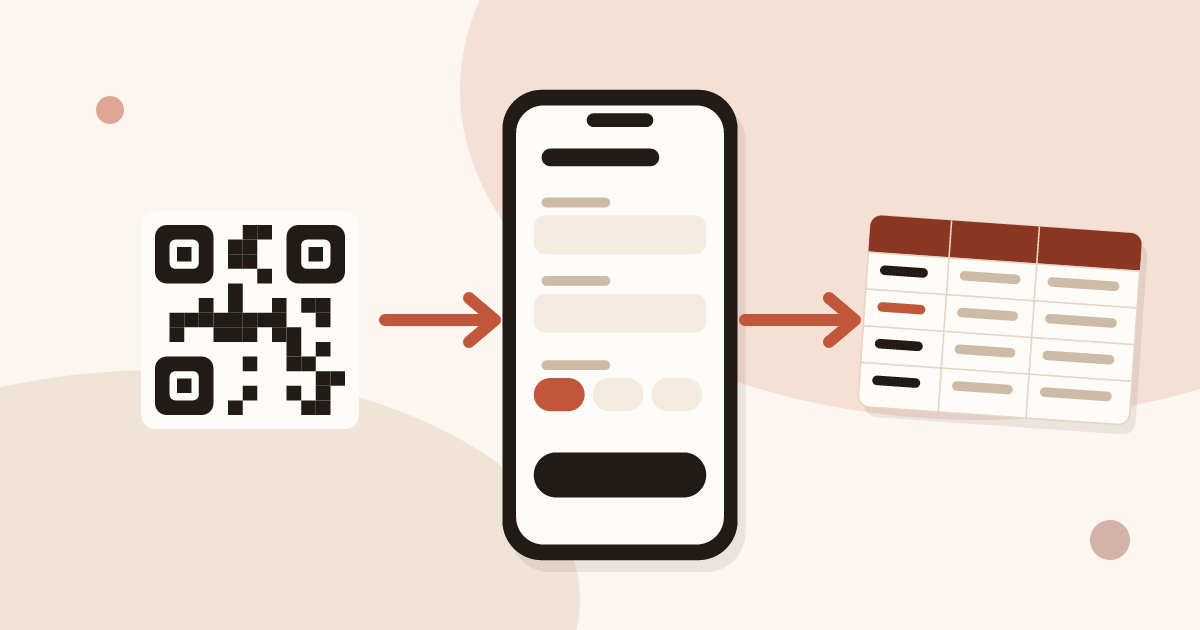
How to Collect Contact Info with a QR Code (and Stay GDPR Compliant)
Turn your business card QR code into a two-way exchange: let people leave their details, record consent, and send the lead to your CRM.
 Article
Tap business cards: no special card needed
Make tap business cards with a plain NFC tag or sticker: write your digital card’s link on it and share your details with one tap.
Create your digital card
The Free plan includes one live card. No app needed for the people who receive it.