QR Code Business Cards: Definition and How to Make One
Business cards with a QR code are scanned with the phone camera, with no app to install. The code holds either your contact details (vCard) or the address of a digital card. The link is more flexible: you edit the card without reprinting. Print the code large enough, with strong contrast and a quiet zone, and test it.
What is a QR code business card?
A QR code business card is a card, paper or digital, that carries a QR code the phone camera can scan. A paper card carries little: a name, a job title, a number, an email address. The QR code adds a short path to everything else. The person opens the phone camera, points it at the code, and a page or a contact appears. Nothing to type, no detail to copy, no app to download.
On a business card, the code does three jobs.
- Save the contact. The visitor adds your name, number and email to their address book in a few taps.
- Show more than the paper. A web page displays your photo, links, website, calendar and social profiles. The paper card stays plain and the page completes it.
- Bring back the other person’s details. A digital card can offer a form. The person you have just met leaves a name and an email address, and you keep a trace of the exchange.
QR business cards do not replace the paper card. You can keep handing it out: the code is one more way to pass on your details, printed on the object already in your hand. It also works beyond paper, on a stand, in a presentation or in an email signature, as the section on other media explains.
This guide follows the journey in order: choose the content of the code, create it, place it, test it, then track the results. For a wider tour of the digital card itself, read the guide on how digital business cards work. For the tap gesture with no scan, see the guide to NFC business cards.
What should a business card QR code link to?
A QR code carries a piece of text and nothing else. A business card QR code should link to one of two things: your contact details in vCard format, or the address of a live digital card. For a card handed out all year, the second is the safer answer. Both are common on a business card. The choice between them decides everything else: lifespan of the printed card, tracking, density of the pattern.
The vCard: your details inside the pattern
A vCard is a standard format for a contact record, and the article on how to create a vCard explains how to build one. The QR code holds its full text: name, company, phone, email, sometimes address and website. The phone reads the code, recognises a contact record and offers to save it.
The benefit is plain: everything is in the code, so no connection is needed to read the information. In an exhibition hall where mobile signal struggles, that counts.
The drawbacks come from the same cause. The data is frozen in the pattern. A number changes, a job title moves on, an address shifts: the printed code stays wrong, and only a reprint fixes it. The more fields you add, the denser the pattern, so the larger you must print it to keep it readable. Finally, there is no tracking: nobody knows whether the code was ever scanned.
The link to a digital card: an address inside the pattern
The second text is a plain web address, the one of a digital card. The code is short, so its pattern is simple and reads easily even when small. The visitor lands on a page, browses it, then saves the contact in one tap, in vCard format, from that page.
You edit the card whenever you like. The change is live as soon as you save and the printed code keeps working. This is why the choice suits paper cards handed out over many months.
The trade-off is clear: the page needs a connection to open. And the code only makes sense while the card exists and stays published.
Choice table
| Criterion | vCard QR code | QR code to a digital card |
|---|---|---|
| Content of the code | Your contact details | The address of the card |
| Editing after printing | Impossible, reprint needed | Possible, the page changes and the code stays |
| Density of the pattern | High, code to print larger | Low, simple code to read |
| Reading without signal | Yes | No, the page needs a connection |
| Statistics | None | Views, saved contacts, clicks |
| Form to collect the visitor’s details | No | Yes |
| Photo, links, several pieces of information | Limited | Yes |
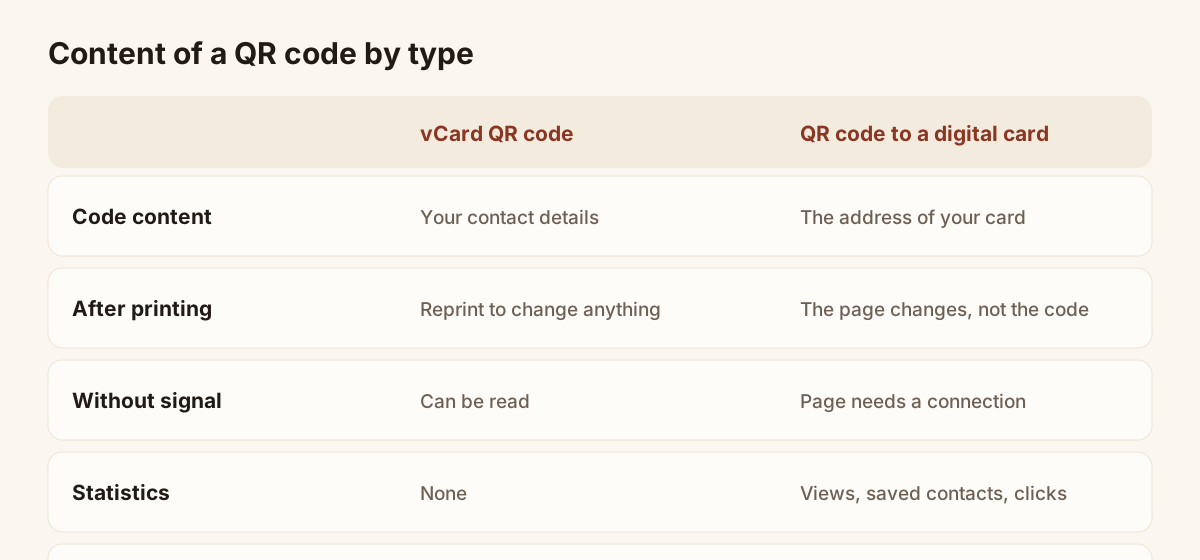
Content of a QR code by type.
For a card handed out all year, choose the link. Keep the vCard for a medium whose lifespan you control, or for use with no signal.
Static or dynamic QR code
Both words appear in every QR generator offer. They describe a simple difference.
A static QR code holds the information directly: the final address, or a vCard. It never changes. Once printed, its content is final. A vCard code is a static code.
A dynamic QR code holds the address of an intermediary, which redirects to the destination. The destination can change without touching the pattern. This is the principle of a code that points to a digital card: the printed pattern stays the same while the page behind it moves on.
| Criterion | Static code | Dynamic code |
|---|---|---|
| Content of the pattern | The information itself | An address that redirects to the destination |
| Changing the destination | No | Yes |
| Relies on an online service | No | Yes |
| Tracking of opens | No | Possible on the destination side |
The code of a Piktechs card belongs to the second family: it holds the address of your card, and according to the help centre the QR code, the link and the NFC tag always open the same card. You change a number or a job title, the update is live straight away, and nothing is reprinted.
One point of care concerns dependence: a dynamic code only works while the destination exists. If you take the card offline or delete it, the printed code leads to a page that shows nothing. For a paper card, keep the card published as long as copies are in circulation. Taking a card offline deletes nothing in Piktechs, and you can publish it again.
How to make a QR code business card
The path depends on your starting point. With no digital card, create one first: the article on how to create a digital business card covers the whole route, from the photo to the Publish button. With an existing card, creating the code takes under a minute. This is how to create a QR code for a business card with Piktechs. To compare other ways to generate one, such as static and dynamic codes, read the article on the QR code business card generator.
Steps in Piktechs
- Open “My cards”.
- Check that the card is published. A QR code leads to a live page, not to a draft.
- Click “Share” on the card.
- Choose “QR code”.
- Show it on your phone screen, or print it.
Each card has its own unique QR code. It opens with the phone camera, with nothing to install.
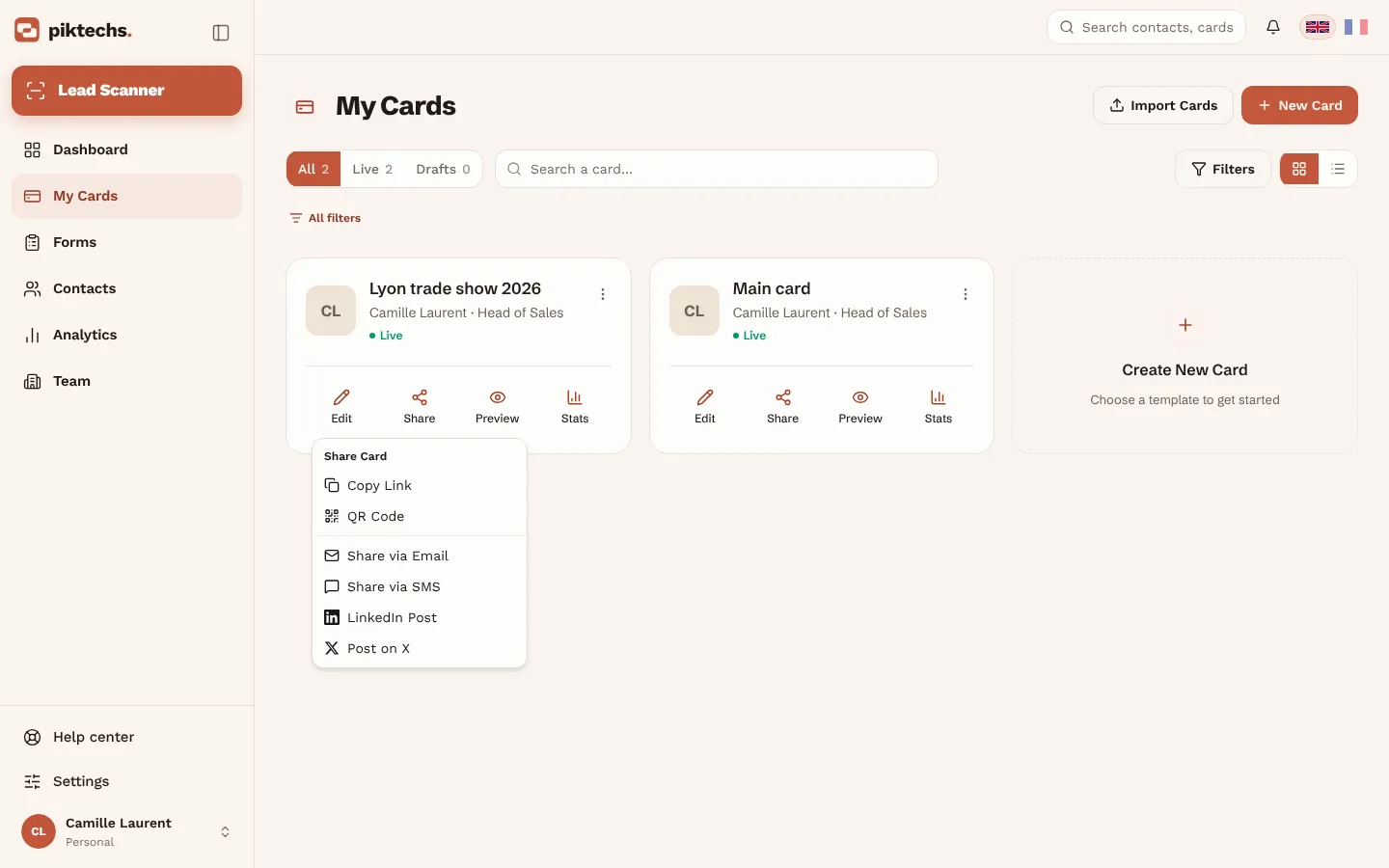
Piktechs screen, sample data.
Drafts are unlimited on every plan. Only published cards count: one on Free, five on Pro, five per seat on Team. A Free account therefore has one live QR code. With Pro or Team, you can create a separate code for each card, for example one for the paper card, one for a trade show stand and one for client meetings. Plans are detailed on the digital business cards page.
Prepare the card before taking the code
The code opens the card, so polish it before printing. Check these points.
- The photo is sharp and recent.
- The job title, company and number are correct.
- The save-contact button works on your own phone.
- If you want to collect visitors’ details, the form is active (forms are included with Pro and Team).
- The address of the card is the one you want to show. Pro allows a custom address, and Team allows your own domain.
One code per use
With Pro or Team, think of one code per situation. One card for the general paper card, another for a given trade show, a third for a mailing campaign. The views of each card appear in its statistics, so you can tell afterwards which medium led to which card. The section on tracking scans returns to this.
Place the QR code on a paper business card
A QR code reads badly when it is too small, low in contrast or crowded by other elements. The rules below are common good practice. None of them is a standard: the printed proof always has the last word. The article on putting a QR code on a business card goes further on size and placement.
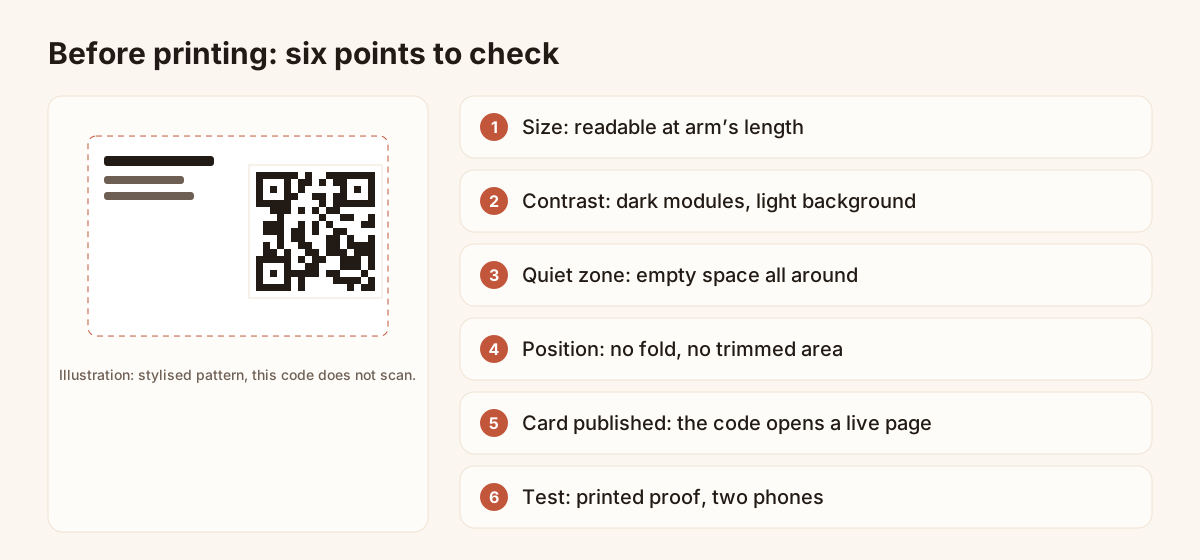
Six points to check before printing. The pattern is a stylised illustration and does not scan.
Size
As a rule of thumb, aim for about 2 cm per side for a card read at arm’s length. The figure is a landmark, not a requirement. Enlarge the code in three cases: the pattern is dense (a loaded vCard), reading happens from further away, or the paper is textured or the light is weak. A link code, being simpler, copes better with a small size.
Contrast
The most reliable combination remains dark modules on a light background. Avoid light text on a dark background, gradients inside the code, and colours close to each other, such as light grey on cream. A brand colour is possible as long as the contrast stays very strong: test it on several phones.
Quiet zone
Leave empty space all around the code. No text, no image and no card edge should enter it. This calm zone helps the camera find the pattern. A card whose code touches the trim edge is one of the most common mistakes.
Position on the card
Place the code on the back of the card, or in a clear corner of the front if the back is taken. Keep it away from folds and from areas the printer may trim. Avoid very glossy or laminated papers: they reflect light and hinder reading. A spot varnish over the code is not advised without a prior test.
Proportions and orientation
Never distort the code: it must stay square. Do not rotate it, crop it, or lay a logo or text over it. An icon in the centre of a code is an option in some generators, but it lowers tolerance for reading errors: add it only after testing.
An invitation line
Many people do not know that their camera scans codes. Add a short sentence beside it: “Scan to save my contact” or “Scan to open my card”. The sentence announces the next step and reassures those who hesitate.
Do QR code business cards work?
Yes, QR code business cards work, on one condition: the code must be readable and lead to a page that is live. The camera of a recent iPhone or Android phone reads a QR code with no app and no particular setting, and the card opens in the browser.
In practice, four points decide whether a code works.
- Print quality. A code that is too small, low in contrast or crowded by other elements fails to scan. The checks in the section on testing catch this.
- A live destination. A code to a digital card opens a page, so the card must stay published and the phone needs a connection. A vCard code reads without signal.
- A visible invitation. Many people do not know their camera scans codes. A short line such as “Scan to save my contact” solves it.
- A card worth opening. If the page holds a typo, an old photo or a broken link, the scan works and the contact is still lost.
Then the code does a real job: the person saves your details in a few taps, and a form can bring their own back to you. Test a printed proof on two phones before launching a run. If it scans on the first attempt on each, the card will do its work.
Other media: stand, slide, email signature, badge
The QR code of a digital card is not reserved for paper. The same address appears on other media, as long as you adapt the size and the reading context.
Trade show stand
On a stand, the code is read from a distance, sometimes two metres, by people walking past. Print it much larger than on a card, on a poster or a display at eye level, with a generous quiet zone. Add a sentence that promises a clear benefit: “Scan to get my details and leave yours”. If the card contains a form, each visitor can leave their details without you taking out a notebook. For trade show collection as a whole, read the article on how to collect leads at trade shows.
Conference and presentation
On a slide, the code must stay on screen long enough to be scanned, preferably on the last slide and on a transition slide. Place it on a light background, at a size the back of the room can see, with the invitation line. For a conference where you have no stand, the article on conference lead capture describes the full method.
Email signature
An email signature does not need a code to scan: the person is already reading the message on a phone or computer screen. A clickable link suits better. Copy the link of the card from the Share screen and paste it into the signature settings of your mail client. A QR code in a signature is only useful if the message is read on a screen and scanned from a second device, a rare case.
Badge and desk sign
A conference badge that you print yourself can carry the QR code of your card. The same rules apply: size, contrast, quiet zone, and a medium that does not bend. A code on a badge is read from close up, sometimes while moving, so prefer a simple code, meaning a link rather than a vCard. A useful precision: Piktechs does not read organisers’ badges. The code on your badge opens your card, and does not replace the event’s badge scanner.
Other uses
- Meeting or quote sheet: a code to come back to your page after the meeting.
- Vehicle, shop window, point of sale: the code is read from several dozen centimetres or more. Enlarge it accordingly.
- Phone screen: show the code on your phone when you have run out of paper cards. A phone at full brightness reads well.
QR code, NFC or link: choosing the right gesture
The QR code is one way among others to share a digital card. Piktechs offers two more: the link and the NFC tag. None excludes the others, because they all open the same card.
| Gesture | When to choose it | Limit |
|---|---|---|
| QR code | Paper, poster, screen, slide: any visual medium | The other person must take out their camera |
| NFC | Face-to-face meeting, phone against phone or tag | Needs a compatible phone and a tag |
| Link | Message, email, social network | You must send it, so you need a channel |
NFC works on recent iPhones and Android phones. Piktechs sells no physical NFC card: an NFC tag is linked to one of your cards. To learn more, see the guide to NFC business cards and the article on tap business cards. The QR code remains the most universal gesture: any recent phone reads a code with its camera, with no particular setting.
A simple rule: put a QR code wherever someone looks at a medium, and a scan-free gesture where two people stand face to face.
Test the QR code before printing
A test takes a minute. A run of badly printed cards costs a reprint and a week of waiting. Run these checks on a proof, not only on screen.
- Print one copy at real size, on the real printer or at the printer’s shop, on the real paper. The on-screen preview shows neither the grain of the paper nor its glare.
- Scan with at least two phones, an iPhone and an Android for example, of different makes and generations.
- Scan in poor conditions: at arm’s length, in a dimly lit room, under a fluorescent tube, as at a trade show.
- Check the landing page: it opens quickly, displays well on a phone, and the save-contact button works.
- Check the content: photo, name, job title, number, website link and form. A typo on the card is visible to every person who scans.
- Test saving the contact: the contact appears in the address book with the right details.
- Proofread before sending to the printer: have another person read the card and scan without your help.
If a phone fails, enlarge the code, raise the contrast or widen the quiet zone, then start again. Launch the run only once every test phone succeeds on the first attempt.
Track scans and the contacts collected
A vCard QR code leaves no trace: the phone reads the text and nobody knows. A QR code to a digital card opens a page, and that page can count.
Data available in Piktechs
The statistics of each card show views, saved contacts and clicks on your links, as well as the new leads collected. They are included with Pro and Team. You also see the most clicked links. A notification can warn you when a visitor leaves their details in the form.
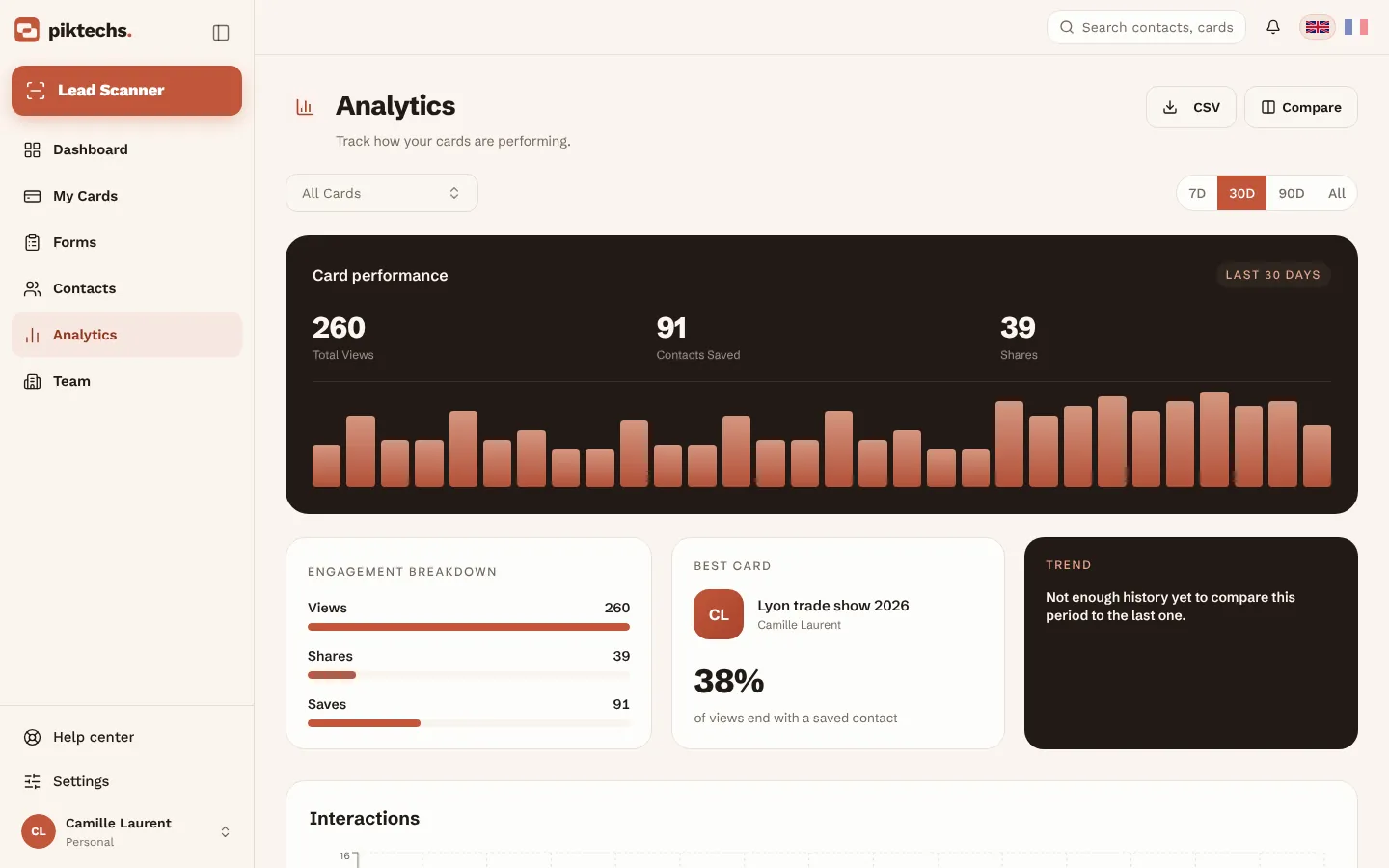
Piktechs screen, sample data.
A view of the card is not a scan: a person opens the card through the QR code, the link or NFC, and the page counts one open. Keep this nuance in mind when you read the figures.
Knowing which medium works
To compare two media, create one card per medium, then read the views of each. With five live cards on Pro, you can dedicate one card to the stand, one to the paper card and one to presentations. No reference figure exists to judge a result: compare your own media with each other, over time.
From scan to lead
When the card contains a form, the visitor leaves a name, an email address and answers. The lead arrives in Contacts with its source and answers, then you sync it with HubSpot, Odoo, Zapier or Make, or export it as CSV. GDPR consent is recorded with each lead. Data is hosted in the European Union. The QR code is thus the first link of a capture chain: scan, card, form, Contacts, CRM. The article on how to collect contact information with a QR code covers the form and the GDPR points in detail.
One limit applies to the CSV export of contacts: it has no phone, priority, tags or notes column. For a full transfer to your sales tool, prefer the sync with HubSpot or Odoo, or an automation through Zapier or Make. Piktechs has no native Salesforce connector.
Common mistakes with business card QR codes
- Code too small for the density of the pattern. A loaded vCard needs a larger code than a plain link.
- Weak contrast: light grey code, pale brand colour, textured background.
- No quiet zone: the code touches the card edge, an image or some text.
- Code leading to a draft or to a card taken offline: the page does not display.
- vCard code on a card that must last: the first change of number forces a full reprint.
- Test done only on screen: the glare of glossy paper only appears in print.
- Test done only on your own phone: another model fails.
- No invitation line: the person does not know they can scan.
- Distorted, stretched or cropped code caused by the layout.
- One code for every medium: impossible afterwards to know which one works.
- Neglected digital card: the landing page carries a typo, an old photo or a broken link.
- Code with no form when the aim is to collect contacts: the person saves your details, but you keep nothing about them.
If a run is already printed with a mistake, two options limit the damage: with a code to a digital card, fix the page and the code stays valid; with an unreadable code, a correctly printed sticker, placed with its quiet zone, often rescues the run.
Frequently asked questions
How do you create a QR code for a business card?
Publish your digital card, click “Share” in “My cards”, choose “QR code”, then show it on your screen or print it. The code opens your live card, and you can edit the card without reprinting.
Do QR code business cards work on any phone?
On recent iPhone and Android phones, the camera reads the code with no app. The code must be printed large enough, with strong contrast and a quiet zone, and a code to a digital card needs a connection to open the page.
Can you put a QR code on a paper business card?
Yes. Print the code on the back of the card or in a clear corner, large enough to be read at arm’s length, with a quiet zone all around. Test a printed copy on two phones before launching the run.
Do you need an app to scan a business card QR code?
No. The camera of recent iPhones and Android phones reads QR codes. The person installs nothing and the card opens in their browser. They then save the contact in one tap.
What happens if I change my number after printing?
With a code that points to a digital card, you edit the card and the change is live as soon as you save, without touching the code. With a vCard code, the details are inside the pattern, so you must reprint.
What is the minimum size of a QR code on a business card?
No single rule applies. As a common landmark, aim for about 2 cm per side for a card read at arm’s length. The denser the code, or the further away it is read, the larger it must be. The printed proof, scanned on several phones, settles it.
Can you track the scans of a business card QR code?
With a digital card, the Pro and Team statistics show card views, saved contacts, clicks and new leads. A view matches one open of the page, not an isolated scan. A vCard code allows no tracking.
Read next
 Article
How to Collect Contact Info with a QR Code (and Stay GDPR Compliant)
Turn your business card QR code into a two-way exchange: let people leave their details, record consent, and send the lead to your CRM.
 Article
What Is a vCard? How to Create One (and Why a Digital Card Beats a .vcf File)
A vCard (.vcf) is a contact file. Learn how to create one by hand or with a generator, turn it into a QR code, and see where it falls short.
 Article
Free QR Code Business Card Generator: Static vs Dynamic QR Codes
Generate a QR code for your business card for free, and learn why a dynamic QR code you can edit and track beats a static vCard code.
Create your digital card
The Free plan includes one live card. No app needed for the people who receive it.